When I started working with databases, I used to look at EXPLAIN output the way most people look at a legal document: scan for anything familiar, feel worried, close it. It took me a while to realise that a query plan is actually very readable once you know what to look at first. And usually, the problem jumps out within 30 seconds.
This lesson gives you that “what to look at first” method, with real plans from our Tiffin Express database.
EXPLAIN vs EXPLAIN ANALYZE
EXPLAIN queryshows the plan the database intends to use, with its estimates. It doesn’t run the query.EXPLAIN (ANALYZE) queryactually runs the query and shows estimates and what really happened.EXPLAIN (ANALYZE, BUFFERS) queryalso shows how many pages each step touched.
Always use ANALYZE, BUFFERS when debugging. Estimates alone are just the planner’s guesses, and the whole point is usually to find where the guesses are wrong.
Careful: ANALYZE really executes the statement. For UPDATE, DELETE or INSERT, wrap it in a transaction and roll back:
BEGIN;
EXPLAIN (ANALYZE, BUFFERS) UPDATE orders SET status = 'cancelled' WHERE id = 42;
ROLLBACK;
Anatomy of One Plan Line
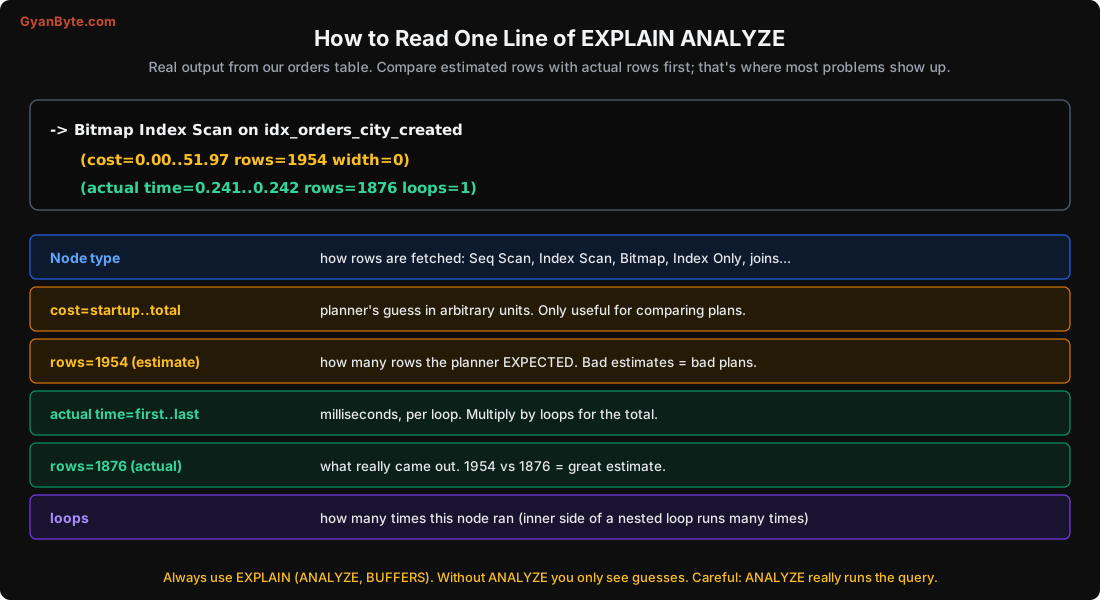
Let’s take one real line:
->  Bitmap Index Scan on idx_orders_city_created
      (cost=0.00..51.97 rows=1954 width=0)
(actual time=0.241..0.242 rows=1876 loops=1)- Node type: how rows are produced (here, a bitmap index scan on a specific index).
- cost=0.00..51.97: the planner’s estimated cost to return the first row, and all rows. The units are arbitrary (roughly “cost of reading one page sequentially = 1”). Useful only for comparing plans, not as a time.
- rows=1954: how many rows the planner expected this node to return.
- width=0: average row size in bytes it expected.
- actual time=0.241..0.242: real milliseconds to first row and to last row, per loop.
- rows=1876: rows actually returned, per loop.
- loops=1: how many times this node ran.
Expected 1,954, got 1,876. That’s a great estimate. When the estimate is off by 10x or 100x, that’s usually where your problem is. More on this in Lesson 4.
How to Read a Whole Plan
A plan is a tree. The most indented nodes run first and feed rows to their parent. So read from the inside out, bottom to top.
Here’s a real plan for “orders per city in the last 30 days”:
EXPLAIN ANALYZE
SELECT c.city, count(*), sum(o.amount_paise)
FROM customers c JOIN orders o ON o.customer_id = c.id
WHERE o.created_at > now() - interval '30 days'
GROUP BY c.city;
Finalize GroupAggregate (actual time=266.594..273.191 rows=10 loops=1)
Group Key: c.city
-> Gather Merge (actual time=266.573..273.152 rows=30 loops=1)
Workers Planned: 2
Workers Launched: 2
-> Sort (actual time=263.053..263.059 rows=10 loops=3)
Sort Key: c.city
Sort Method: quicksort Memory: 25kB
-> Partial HashAggregate (actual time=263.004..263.012 rows=10 loops=3)
Group Key: c.city
-> Parallel Hash Join (actual time=36.468..255.419 rows=27396 loops=3)
Hash Cond: (o.customer_id = c.id)
-> Parallel Seq Scan on orders o (rows=33491) (actual time=0.025..199.880 rows=27396 loops=3)
Filter: (created_at > (now() - '30 days'::interval))
Rows Removed by Filter: 639270
-> Parallel Hash (actual time=35.557..35.558 rows=66667 loops=3)
Buckets: 262144 Batches: 1 Memory Usage: 11808kB
-> Parallel Seq Scan on customers c (actual time=0.012..10.476 rows=66667 loops=3)
Execution Time: 273.335 msReading it inside out:
- Scan
customers(all rows) and build a hash table in memory (11.8 MB, one batch, no disk). - Scan
orders, keep only the last 30 days (about 27k rows per worker, throwing away 6.4 lakh per worker), and look each one up in the hash table. - Each worker groups its rows by city (partial aggregate).
- Sort, gather results from the workers, and finalise the totals.
Where’s the time? The Parallel Seq Scan on orders took ~200 ms of the ~273 ms total. That’s the node to fix. Rows Removed by Filter: 6.4 lakh per worker. We’re reading the whole table to find 4% of it. An index on created_at (or a better use of existing indexes) would help. That’s the 30-second diagnosis.
Parallel plans: rows are per worker
Notice loops=3 under Gather. Two workers plus the main process (the “leader”) each ran the scan. rows=27396 is per loop. The real total is about 82,000. This confuses everyone the first time. Under a Gather node, multiply rows by loops.
The Five-Step Method
When a plan is in front of you, go through these in order:
- Find the slowest node. Look at
actual time(multiplied byloops). Where does the time jump? That’s your area. - Compare estimated rows and actual rows at that node and below. A 10x+ mismatch means the planner had wrong information, and likely chose the wrong plan. (Lesson 4.)
- Look for wasted work:
Rows Removed by Filtermuch bigger than rows returned,Heap Fetcheson an index-only scan,Recheckremoving many rows. - Check loops: a node with
loops=50000(usually the inner side of a nested loop) multiplies everything. - Check buffers and memory: lots of
read(nothit), sorts withDisk:, hashes withBatches:more than 1.
Most problems are found at step 1 or 2.
The Four Scan Types
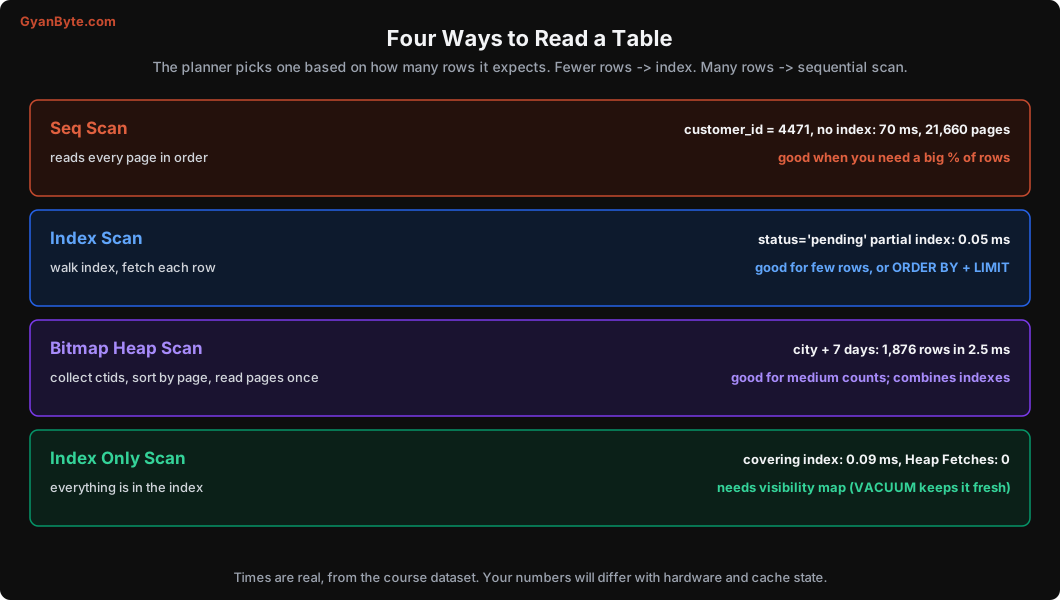
Seq Scan. Reads every page of the table in order. Sounds bad, but sequential reads are efficient, and if the query needs a big fraction of the table (say, more than 5-10% of rows), a seq scan is often the right choice. Don’t panic at every seq scan. Panic at seq scans on big tables that return few rows.
Index Scan. Walks the index and, for each match, fetches the row from the table. Very fast for a few rows. Also the natural choice for ORDER BY ... LIMIT, since the index is already sorted. Gets expensive when many rows match, because each row can mean a random page read.
Bitmap Index Scan + Bitmap Heap Scan. A middle path. First collect all matching ctids from the index into a bitmap, sorted by page; then read each needed page once. Good for “medium” result sizes, and can combine several indexes with BitmapAnd / BitmapOr. The Recheck Cond line is normal; it matters only if many rows are removed by the recheck (the bitmap became “lossy” because work_mem was too small).
Index Only Scan. All needed columns are in the index, so the table isn’t visited, as long as the visibility map says the pages are all-visible. Watch Heap Fetches; high numbers mean you’re not getting the benefit (usually because VACUUM hasn’t caught up).
The Three Join Algorithms
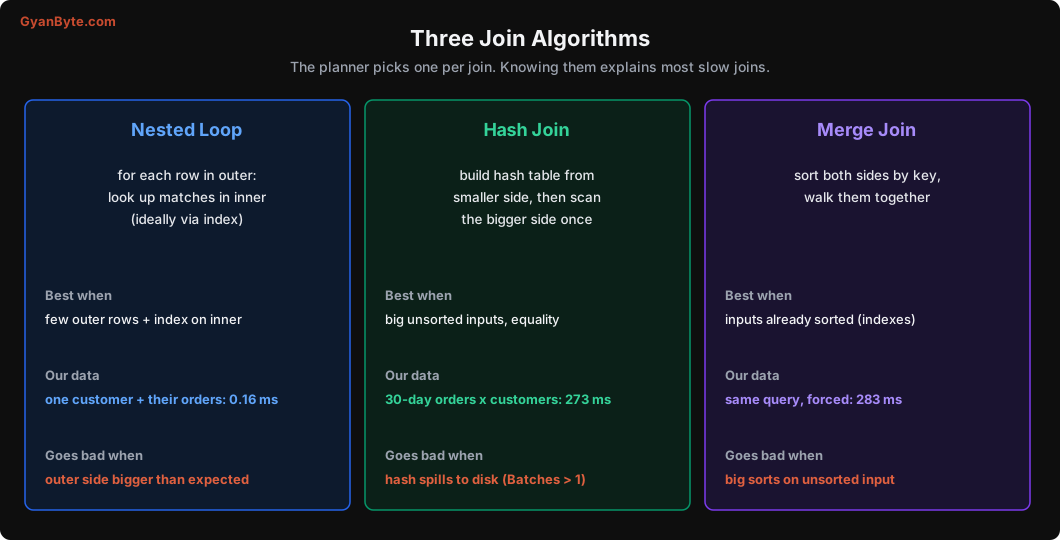
Nested Loop. For each row from the outer side, look up matching rows on the inner side. Perfect when the outer side is small and the inner side has an index:
EXPLAIN (ANALYZE, BUFFERS)
SELECT c.name, o.amount_paise
FROM customers c JOIN orders o ON o.customer_id = c.id
WHERE c.id = 4471;
Nested Loop (actual time=0.079..0.083 rows=9 loops=1)
-> Index Scan using customers_pkey on customers c (actual time=0.054..0.055 rows=1 loops=1)
Index Cond: (id = 4471)
-> Index Only Scan using idx_orders_cust_cover on orders o (actual time=0.022..0.024 rows=9 loops=1)
Index Cond: (customer_id = 4471)
Heap Fetches: 0
Execution Time: 0.155 msOne customer, one index lookup for their orders. 0.16 ms.
Nested loops go badly wrong when the planner thinks the outer side has 10 rows but it actually has 50,000. Then the inner index lookup runs 50,000 times (loops=50000). This is one of the most common causes of “the query was fast yesterday and suddenly takes 30 seconds”.
Hash Join. Build a hash table from the smaller input, then scan the bigger input once and probe the hash. Great for large, unsorted inputs with an equality condition. That’s what our 30-day report used. Watch the Batches line under Hash: Batches: 1 means the hash fit in memory. More batches means it spilled to disk, which is much slower. The fix is usually more work_mem for that query, or fewer rows going into the hash.
Merge Join. Sort both inputs by the join key, then walk them side by side. Efficient when both inputs are already sorted (for example, by an index). I forced our 30-day report to use a merge join to compare:
SET enable_hashjoin = off; SET enable_nestloop = off; -- for testing only! Merge Join (actual time=200.354..269.224 rows=82189 loops=1)
Merge Cond: (c.id = o.customer_id)
-> Index Scan using customers_pkey on customers c (actual time=0.012..34.552 rows=199998 loops=1)
-> Sort (actual time=200.017..204.272 rows=82189 loops=1)
Sort Key: o.customer_id
Sort Method: quicksort Memory: 3073kB
Execution Time: 282.783 ms283 ms versus 273 ms with the hash join. The planner was right to prefer the hash join here. (Those enable_* settings are for experiments like this. Don’t set them in production to “fix” a plan; fix the cause instead.)
Sorts, Memory and Disk
Sorting and hashing use memory up to work_mem (4 MB by default) per operation. When data doesn’t fit, Postgres spills to temporary files on disk.
Sorting 3.3 lakh recent orders by amount with the default work_mem:
 Sort  (actual time=768.520..824.181 rows=328753 loops=1)
   Sort Key: amount_paise DESC
   Sort Method: external merge  Disk: 8384kB
external merge Disk: 8384kB: the sort spilled 8 MB to disk. With SET work_mem = '64MB' for this session:
Sort Method: quicksort Memory: 25130kBFully in memory. (In this case total time only improved from 858 ms to 790 ms, because the seq scan dominated. Spills hurt much more on busy servers with slower disks.)
Be careful raising work_mem globally: it’s per sort/hash operation, per query, per connection. A complex query can use several times work_mem, and 200 connections doing that can exhaust the server’s memory. Raise it per session or per role for heavy reporting queries instead.
And here’s a nice optimisation the planner does for you:
... ORDER BY amount_paise DESC LIMIT 10; Limit (actual time=586.224..586.228 rows=10 loops=1)
-> Sort (actual time=586.222..586.224 rows=10 loops=1)
Sort Method: top-N heapsort Memory: 25kBWith a LIMIT, Postgres keeps only the top 10 while scanning (top-N heapsort, 25 KB). It still had to scan all 3.3 lakh rows, though. An index on amount_paise would let it read just 10 rows from the index.
Getting Plans From Production
You won’t always be able to reproduce a slow query on your laptop. Two tools help:
auto_explainextension: automatically logs the plan of any query slower than a threshold (auto_explain.log_min_duration = '500ms', withlog_analyzeandlog_bufferson). Turning onlog_analyzeadds some overhead to every query, so many teams enable it with sampling or only during investigations.pg_stat_statements(Lesson 12): shows which queries take the most total time, so you know which plans to look at.
For long plans, paste them into a visualiser like explain.dalibo.com or explain.depesz.com. They highlight the slowest nodes and the worst estimates. Just be careful not to paste sensitive data from query text into public tools; use the self-hosted versions or anonymise first.
Pitfalls to Avoid
- Plain
EXPLAINwithoutANALYZE. You only see guesses. EXPLAIN ANALYZEon writes without a rollback. It really runs them.- Reading top-down. Read inside out; the deepest nodes run first.
- Ignoring loops. Time and rows are per loop; multiply.
- Panicking at every seq scan. They’re fine for large fractions of a table or small tables.
- Ignoring estimate vs actual mismatches. They’re the most common root cause of bad plans.
- Missing disk spills. Look for
Disk:on sorts andBatches > 1on hashes. - Raising
work_memglobally to fix one report. Set it per session or per role. - Using
enable_*settings in production. They’re for experiments.
Quick Recap
- Use
EXPLAIN (ANALYZE, BUFFERS), read inside out, multiply by loops. - Five steps: slowest node, estimate vs actual, wasted work, loops, buffers and memory.
- Seq, index, bitmap and index-only scans each have their place.
- Nested loop for small outer + indexed inner; hash for big unsorted; merge for sorted inputs.
- Watch for spills to disk, and for per-worker numbers in parallel plans.
Next lesson: why the planner sometimes picks a terrible plan, and how statistics, estimates and a few settings decide what it does.