You’ve collected logs, metrics and traces. Now a human has to use them — often a stressed one, at 2 AM, during an incident. That’s what dashboards are for, and most dashboards fail at exactly that moment, because they were built for completeness rather than for answering a question fast. This lesson is about building the other kind: dashboards that tell you, at a glance, whether something is healthy and — if not — where to look.
The Wall of Graphs vs a Dashboard That Answers
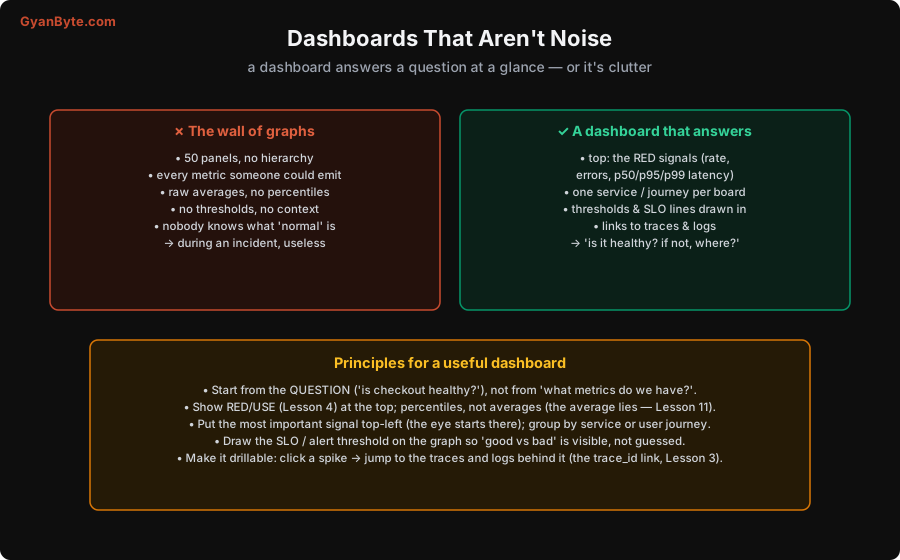
The anti-pattern is the wall of graphs: 50 panels showing every metric anyone ever emitted, no hierarchy, raw averages, no thresholds, no sense of what “normal” looks like. It feels thorough — look how much we’re monitoring! — but during an incident it’s useless, because you can’t tell at a glance whether anything is wrong or where to focus. You end up scrolling past dozens of flat graphs hunting for the one that’s abnormal, while users suffer.
A dashboard that answers is the opposite. It’s built around a question (“is checkout healthy?”), shows the handful of signals that answer it (the RED signals — rate, errors, latency percentiles — at the top), covers one service or one user journey, draws the thresholds so “good vs bad” is visible, and links out to the traces and logs behind any spike. You look at it and know in two seconds: healthy or not, and if not, where.
Principles for a Useful Dashboard
A few rules turn the wall of graphs into something that helps:
- Start from the question, not the metrics. Ask “what do I need to know about this service?” (“Is checkout healthy? Is the API meeting its SLO?”) and build the dashboard to answer that. A dashboard assembled from “every metric we have” answers nothing in particular. The question gives it a job.
- Show RED/USE at the top, with percentiles. Lead with the signals that matter (Lesson 4): rate, errors, and latency percentiles (p50/p95/p99 — never averages, because the average lies, Lesson 11). For resources, USE. These few panels answer “is it healthy?” before you look at anything else.
- One service or journey per dashboard. Scope each board to one thing — a service, or a user journey like “checkout.” A single dashboard trying to show your whole system shows nothing clearly. Hierarchy of dashboards (overview → per-service) beats one giant board.
- Put the most important signal top-left. The eye starts at the top-left; put the headline health signal there (overall error rate, or SLO status), then supporting detail below and to the right. Layout is information design, not decoration.
- Draw thresholds and SLO lines. A latency graph is far more useful with the SLO/alert threshold drawn on it, so you see when it crosses into “bad” instead of having to remember what number is too high. Make good-vs-bad visible, not a thing you compute in your head.
- Make it drillable. The best dashboards let you click a spike and jump straight to the traces and logs behind it (via the trace_id, Lessons 2–3). The dashboard tells you something’s wrong and roughly where; the drill-down (metric → trace → log, Lesson 10) tells you why. A dashboard that’s a dead end — pretty graphs you can’t pivot from — makes you start the investigation over in another tool.
Dashboards vs Alerts (a Quick Distinction)
Worth separating, because people conflate them. A dashboard is for a human looking — exploration, investigation, situational awareness. An alert (Lesson 8) is for telling a human to look when they’re not. You don’t need to stare at dashboards hoping to catch problems — that’s what alerts are for. Dashboards are where you go after an alert fires (or when you proactively review), to understand. So design dashboards for investigation (rich, drillable, per-service), and alerts for notification (few, symptom-based, actionable). Using dashboards as your alerting (“someone’s always watching the graphs”) doesn’t scale and doesn’t work at 2 AM.
A final thought on audience: design for the stressed human during an incident, not for a demo. The question isn’t “does this show everything?” but “can a tired on-call engineer, who didn’t build this service, tell in ten seconds whether it’s healthy and where to look next?” If yes, it’s a good dashboard. If they have to scroll and squint, it’s a wall of graphs.
Pitfalls to Avoid
- The wall of 50 graphs. Thorough-looking, useless in an incident. Build around a question, with hierarchy and the signals that answer it.
- Averages instead of percentiles. The average hides the tail (Lesson 11). Show p50/p95/p99.
- No thresholds drawn. Without the SLO/alert line on the graph, you can’t see good-vs-bad at a glance. Draw it.
- One dashboard for the whole system. Scope each board to one service or journey; use a hierarchy of dashboards.
- Dead-end dashboards. If you can’t click a spike through to traces and logs, the investigation stalls. Make them drillable (Lessons 2–3).
- Using dashboards as alerting. Staring at graphs doesn’t scale and fails at 2 AM. Dashboards are for looking after an alert; alerts tell you when to look (Lesson 8).
Quick Recap
- A dashboard must answer a question at a glance — the “wall of graphs” (50 panels, averages, no thresholds) is useless in an incident.
- Start from the question, show RED/USE with percentiles at the top, scope to one service/journey, put the key signal top-left, and draw thresholds/SLO lines.
- Make dashboards drillable — click a spike → jump to traces and logs (via trace_id, Lessons 2–3).
- Distinguish dashboards (for a human looking, investigation) from alerts (for telling a human to look, Lesson 8). Design for the stressed 2 AM engineer.
Next lesson: the signal that actually wakes people up — alerting — and how to do it so pages are few, meaningful and actionable, instead of a flood everyone learns to ignore.