You have a containerized Node.js application. Now you need to run it somewhere reliable, scalable, and close to your users. AWS provides multiple compute services for Node.js — each with different tradeoffs between control, complexity, and cost. This lesson walks through the major deployment options, shows you how to set up a production ECS deployment, and builds a CI/CD pipeline with GitHub Actions.
Deployment Options Overview
AWS offers four primary ways to run Node.js applications. The right choice depends on your team size, traffic patterns, and how much infrastructure you want to manage.
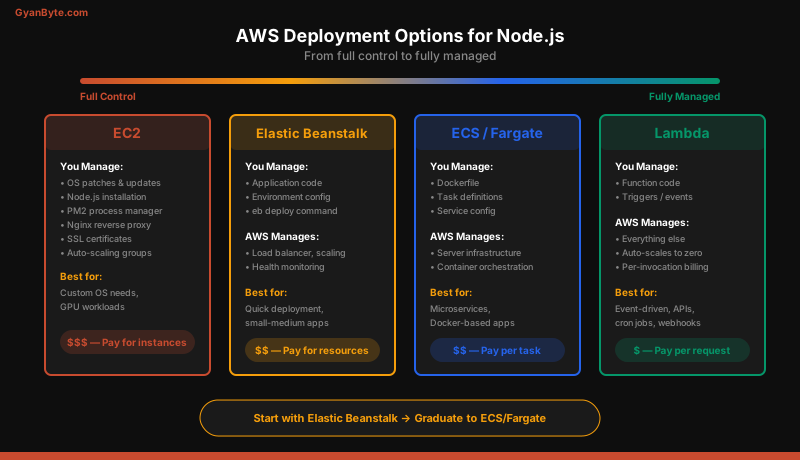
| Feature | EC2 | Elastic Beanstalk | ECS/Fargate | Lambda |
|---|---|---|---|---|
| Control | Full | Medium | Medium | Low |
| Scaling | Manual/ASG | Automatic | Automatic | Automatic |
| Docker support | Manual | Yes | Native | Container images |
| Cold starts | No | No | No | Yes (100-500ms) |
| Min cost | ~$8/mo | ~$8/mo | ~$10/mo | Free tier |
| Best for | Custom setups | Quick deploys | Microservices | Event-driven |
| Setup effort | High | Low | Medium | Low |
EC2 with PM2 and Nginx
EC2 gives you a virtual server where you install Node.js, configure Nginx as a reverse proxy, and manage the process with PM2. This is the most hands-on approach but gives you complete control over the operating system and network configuration.
Setting Up an EC2 Instance
# Connect to your EC2 instance
ssh -i mykey.pem ec2-user@your-instance-ip

# Install Node.js via nvm
curl -o- https://raw.githubusercontent.com/nvm-sh/nvm/v0.39.7/install.sh | bash
source ~/.bashrc
nvm install 20

# Install PM2 globally
npm install -g pm2

# Clone your application
git clone https://github.com/yourorg/myapp.git
cd myapp
npm ci --omit=dev
npm run build

# Start with PM2
pm2 start dist/server.js --name myapp -i max
pm2 save
pm2 startup  # Generate startup script
Nginx Reverse Proxy Configuration
server {
    listen 80;
    server_name api.yourdomain.com;

    location / {
        proxy_pass http://127.0.0.1:3000;
        proxy_http_version 1.1;
        proxy_set_header Upgrade $http_upgrade;
        proxy_set_header Connection 'upgrade';
        proxy_set_header Host $host;
        proxy_set_header X-Real-IP $remote_addr;
        proxy_set_header X-Forwarded-For $proxy_add_x_forwarded_for;
        proxy_set_header X-Forwarded-Proto $scheme;
        proxy_cache_bypass $http_upgrade;
    }
}
EC2 works well when you need GPU access, custom kernel modules, or a specific OS configuration. For most Node.js APIs, the managed options below are better choices.
Elastic Beanstalk
Elastic Beanstalk is the simplest way to deploy a Node.js application on AWS. You provide your code, and EB handles provisioning EC2 instances, load balancers, auto-scaling groups, and health monitoring.
Quick Start
# Install the EB CLI
pip install awsebcli

# Initialize your project
eb init --platform node.js --region us-east-1

# Create an environment
eb create production --instance-type t3.small --single

# Deploy code changes
eb deploy

# View logs
eb logs

# Open in browser
eb open
Configuration with .ebextensions
Create .ebextensions/nodecommand.config to customize the environment:
option_settings:
  aws:elasticbeanstalk:container:nodejs:
    NodeCommand: "npm start"
  aws:elasticbeanstalk:application:environment:
    NODE_ENV: production
    PORT: 8080
  aws:autoscaling:asg:
    MinSize: 2
    MaxSize: 10
  aws:autoscaling:trigger:
    MeasureName: CPUUtilization
    UpperThreshold: 70
    LowerThreshold: 30
Elastic Beanstalk supports Docker deployments too. Add a Dockerfile to your project root, and EB builds and runs it automatically. This is a great starting point for teams that want to move to containers without managing ECS directly.
ECS with Fargate
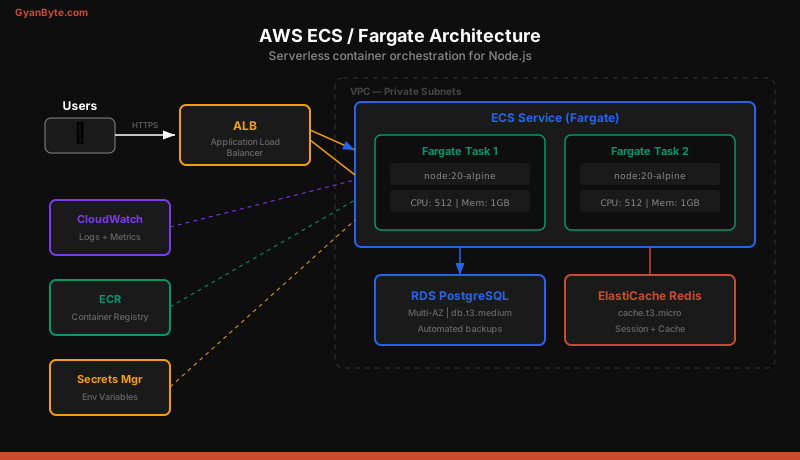
ECS (Elastic Container Service) with Fargate is the recommended approach for running containerized Node.js applications at scale. Fargate eliminates the need to manage EC2 instances — you define your container requirements, and AWS handles the rest.
Key Concepts
- Task Definition — describes which Docker image to run, CPU/memory allocation, environment variables, and health check configuration
- Service — maintains a desired number of running tasks, handles rolling deployments, and integrates with the load balancer
- Cluster — a logical grouping of services and tasks
- ALB (Application Load Balancer) — distributes traffic across running tasks
Task Definition
{
  "family": "myapp",
  "networkMode": "awsvpc",
  "requiresCompatibilities": ["FARGATE"],
  "cpu": "512",
  "memory": "1024",
  "executionRoleArn": "arn:aws:iam::role/ecsTaskExecutionRole",
  "taskRoleArn": "arn:aws:iam::role/ecsTaskRole",
  "containerDefinitions": [
    {
      "name": "api",
      "image": "123456789.dkr.ecr.us-east-1.amazonaws.com/myapp:latest",
      "portMappings": [
        {
          "containerPort": 3000,
          "protocol": "tcp"
        }
      ],
      "healthCheck": {
        "command": ["CMD-SHELL", "wget --no-verbose --tries=1 --spider http://localhost:3000/health || exit 1"],
        "interval": 30,
        "timeout": 5,
        "retries": 3,
        "startPeriod": 60
      },
      "logConfiguration": {
        "logDriver": "awslogs",
        "options": {
          "awslogs-group": "/ecs/myapp",
          "awslogs-region": "us-east-1",
          "awslogs-stream-prefix": "ecs"
        }
      },
      "secrets": [
        {
          "name": "DATABASE_URL",
          "valueFrom": "arn:aws:secretsmanager:us-east-1:123456789:secret:myapp/database-url"
        },
        {
          "name": "JWT_SECRET",
          "valueFrom": "arn:aws:secretsmanager:us-east-1:123456789:secret:myapp/jwt-secret"
        }
      ]
    }
  ]
}
Creating the Service with AWS CLI
# Create ECR repository
aws ecr create-repository --repository-name myapp

# Build, tag, and push the image
aws ecr get-login-password --region us-east-1 | docker login --username AWS --password-stdin 123456789.dkr.ecr.us-east-1.amazonaws.com
docker build -t myapp .
docker tag myapp:latest 123456789.dkr.ecr.us-east-1.amazonaws.com/myapp:latest
docker push 123456789.dkr.ecr.us-east-1.amazonaws.com/myapp:latest

# Register task definition
aws ecs register-task-definition --cli-input-json file://task-definition.json

# Create ECS service
aws ecs create-service \
  --cluster production \
  --service-name myapp \
  --task-definition myapp \
  --desired-count 2 \
  --launch-type FARGATE \
  --network-configuration "awsvpcConfiguration={subnets=[subnet-xxx],securityGroups=[sg-xxx],assignPublicIp=ENABLED}" \
  --load-balancers "targetGroupArn=arn:aws:elasticloadbalancing:...,containerName=api,containerPort=3000" \
  --deployment-configuration "maximumPercent=200,minimumHealthyPercent=100,deploymentCircuitBreaker={enable=true,rollback=true}"
The deployment circuit breaker automatically rolls back to the previous version if new tasks fail their health checks.
Lambda for Serverless Node.js
AWS Lambda runs your code in response to events — HTTP requests via API Gateway, S3 uploads, SQS messages, or scheduled cron jobs. You pay only for the compute time your code actually uses.
// handler.ts
import { APIGatewayProxyHandler } from "aws-lambda";

export const handler: APIGatewayProxyHandler = async (event) => {
  const body = JSON.parse(event.body || "{}");

  return {
    statusCode: 200,
    headers: { "Content-Type": "application/json" },
    body: JSON.stringify({
      message: "Task created",
      taskId: "abc-123",
    }),
  };
};
Lambda works well for webhooks, image processing, scheduled jobs, and lightweight APIs. For long-running Node.js servers with WebSocket connections or heavy database connection pooling, ECS/Fargate is a better fit.
Lambda has cold start latency (100-500ms for Node.js) that can affect the first request after a period of inactivity. Use Provisioned Concurrency if you need consistent response times.
RDS and ElastiCache Setup
Your Node.js application needs managed database and cache services in production.
RDS PostgreSQL provides automated backups, Multi-AZ failover, and read replicas:
aws rds create-db-instance \
  --db-instance-identifier myapp-db \
  --db-instance-class db.t3.medium \
  --engine postgres \
  --engine-version 16 \
  --master-username postgres \
  --master-user-password <from-secrets-manager> \
  --allocated-storage 20 \
  --multi-az \
  --vpc-security-group-ids sg-xxx
ElastiCache Redis handles session storage and caching:
aws elasticache create-cache-cluster \
  --cache-cluster-id myapp-cache \
  --cache-node-type cache.t3.micro \
  --engine redis \
  --num-cache-nodes 1
Both services should be in private subnets, accessible only from your ECS tasks through security group rules.
GitHub Actions CI/CD Pipeline
Automating your deployment with GitHub Actions means every push to main builds, tests, and deploys your application without manual intervention.
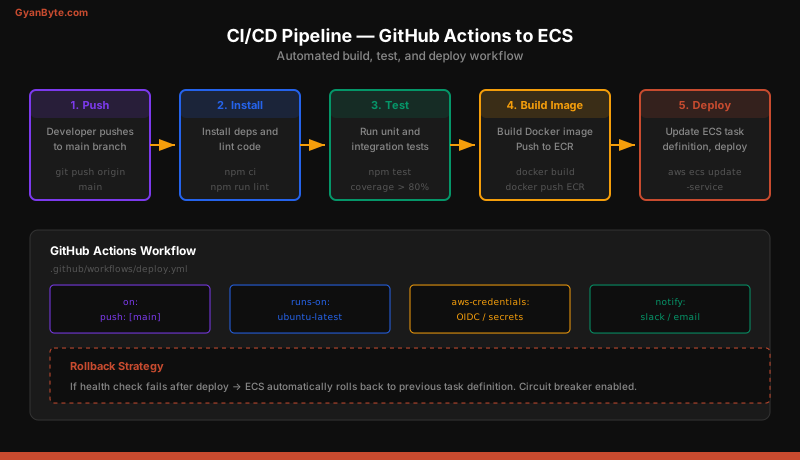
Create .github/workflows/deploy.yml:
name: Deploy to ECS

on:
  push:
    branches: [main]

permissions:
  id-token: write
  contents: read

jobs:
  test:
    runs-on: ubuntu-latest
    services:
      postgres:
        image: postgres:16-alpine
        env:
          POSTGRES_PASSWORD: testpass
          POSTGRES_DB: testdb
        ports:
          - 5432:5432
        options: >-
          --health-cmd pg_isready
          --health-interval 10s
          --health-timeout 5s
          --health-retries 5
    steps:
      - uses: actions/checkout@v4
      - uses: actions/setup-node@v4
        with:
          node-version: 20
          cache: npm
      - run: npm ci
      - run: npm run lint
      - run: npm test
        env:
          DATABASE_URL: postgresql://postgres:testpass@localhost:5432/testdb

  deploy:
    needs: test
    runs-on: ubuntu-latest
    steps:
      - uses: actions/checkout@v4

      - name: Configure AWS credentials
        uses: aws-actions/configure-aws-credentials@v4
        with:
          role-to-assume: arn:aws:iam::role/github-actions-deploy
          aws-region: us-east-1

      - name: Login to Amazon ECR
        id: ecr-login
        uses: aws-actions/amazon-ecr-login@v2

      - name: Build, tag, and push Docker image
        env:
          ECR_REGISTRY: ${{ steps.ecr-login.outputs.registry }}
          IMAGE_TAG: ${{ github.sha }}
        run: |
          docker build -t $ECR_REGISTRY/myapp:$IMAGE_TAG -t $ECR_REGISTRY/myapp:latest .
          docker push $ECR_REGISTRY/myapp:$IMAGE_TAG
          docker push $ECR_REGISTRY/myapp:latest

      - name: Update ECS task definition
        id: task-def
        uses: aws-actions/amazon-ecs-render-task-definition@v1
        with:
          task-definition: task-definition.json
          container-name: api
          image: ${{ steps.ecr-login.outputs.registry }}/myapp:${{ github.sha }}

      - name: Deploy to ECS
        uses: aws-actions/amazon-ecs-deploy-task-definition@v1
        with:
          task-definition: ${{ steps.task-def.outputs.task-definition }}
          service: myapp
          cluster: production
          wait-for-service-stability: true
This workflow uses OpenID Connect (OIDC) for AWS authentication instead of storing long-lived access keys as GitHub secrets. The wait-for-service-stability flag ensures the deployment step does not complete until the new tasks are healthy and receiving traffic.
Environment Variables with AWS Secrets Manager
Store sensitive configuration in AWS Secrets Manager and reference them in your ECS task definition:
# Create a secret
aws secretsmanager create-secret \
  --name myapp/database-url \
  --secret-string "postgresql://user:[email protected]:5432/myapp"

# Your task definition references it by ARN
# (shown in the task definition example above)
The ECS execution role needs secretsmanager:GetSecretValue permission. Secrets are injected as environment variables when the container starts — they never appear in the task definition or image.
Blue/Green Deployments
ECS supports blue/green deployments through AWS CodeDeploy. Instead of gradually replacing old tasks (rolling update), blue/green launches a full set of new tasks alongside the old ones and switches traffic all at once.
The process works like this:
- ECS launches new tasks (green) with the updated image
- Health checks verify the green tasks are healthy
- ALB shifts 100% of traffic from old (blue) to new (green)
- Old tasks are terminated after a configurable waiting period
- If health checks fail, traffic automatically shifts back to blue
Enable this in your ECS service with the CODE_DEPLOY deployment controller instead of ECS (rolling).
Monitoring with CloudWatch
ECS sends container logs to CloudWatch Logs automatically when configured with the awslogs driver. Set up dashboards and alarms for key metrics:
# Create a CPU utilization alarm
aws cloudwatch put-metric-alarm \
  --alarm-name myapp-high-cpu \
  --metric-name CPUUtilization \
  --namespace AWS/ECS \
  --statistic Average \
  --period 300 \
  --threshold 80 \
  --comparison-operator GreaterThanThreshold \
  --evaluation-periods 2 \
  --alarm-actions arn:aws:sns:us-east-1:123456789:alerts \
  --dimensions Name=ServiceName,Value=myapp Name=ClusterName,Value=production
Key metrics to monitor:
- CPUUtilization and MemoryUtilization — for scaling decisions
- HealthyHostCount on the ALB target group — should match desired task count
- HTTPCode_Target_5XX_Count — indicates application errors
- TargetResponseTime — p50, p95, p99 latency
- RunningTaskCount — ensure tasks are not crashing and restarting
Set up CloudWatch Container Insights for detailed per-container metrics including network I/O and disk usage.
Deployment Decision Guide
Use this guide based on your situation:
Choose EC2 when: you need custom OS-level access, GPU instances, or have existing infrastructure automation with Ansible/Terraform.
Choose Elastic Beanstalk when: you want the fastest path to production, your team is small, and you prefer convention over configuration.
Choose ECS/Fargate when: you run Docker containers, need fine-grained control over networking and scaling, or operate multiple microservices.
Choose Lambda when: your workload is event-driven, traffic is bursty or unpredictable, or you want to minimize cost for low-traffic services.
Most teams should start with Elastic Beanstalk for their first production deployment and graduate to ECS/Fargate as their infrastructure needs grow. The Dockerized setup from the previous lesson makes this migration straightforward — you already have the container, you just need to point it at ECS.
Summary
Deploying Node.js to AWS means choosing the right compute service for your workload. ECS with Fargate is the sweet spot for most production APIs — you get container orchestration, automatic scaling, and no servers to manage. Pair it with RDS for your database, ElastiCache for Redis, Secrets Manager for configuration, and GitHub Actions for CI/CD.
In the final lesson, you will tie everything together by building a complete production API from scratch — applying every concept from this course into a single deployable project.