Docker has become the standard for packaging and deploying Node.js applications. It eliminates the “works on my machine” problem by bundling your application, its dependencies, and the runtime environment into a single portable unit. In this lesson, you will learn how to containerize a Node.js application properly — from writing an optimized Dockerfile to running multi-container setups with Docker Compose.
Why Docker for Node.js?
Running Node.js in production without containers means managing system-level dependencies, Node.js versions, and environment variables across every server. Docker solves this by creating an immutable image that runs identically in development, staging, and production.
Key benefits include reproducible builds, isolated dependencies, fast horizontal scaling, and consistent environments across your team.
Dockerfile Basics
A Dockerfile is a text file that describes how to build a Docker image. Here is a minimal Dockerfile for a Node.js application:
FROM node:20-alpine

WORKDIR /app

COPY package*.json ./
RUN npm ci

COPY . .

EXPOSE 3000
CMD ["node", "dist/server.js"]
The FROM instruction sets the base image. The WORKDIR sets the working directory inside the container. COPY and RUN add files and execute commands during the build. EXPOSE documents the port, and CMD defines the default command when the container starts.
Layer Caching Optimization
Docker builds images in layers. Each instruction creates a new layer, and Docker caches layers that have not changed. The order of your instructions matters significantly for build speed.
The key optimization is to copy package.json and package-lock.json before copying your source code. Since dependencies change far less frequently than your application code, Docker can reuse the cached npm ci layer on most builds:
# These layers are cached unless package files change
COPY package*.json ./
RUN npm ci

# This layer rebuilds on every code change
COPY . .
RUN npm run build
If you copy everything at once with COPY . . before npm ci, Docker reinstalls all dependencies every time any source file changes. On a project with hundreds of dependencies, this wastes minutes on every build.
Multi-Stage Builds
A single-stage build includes everything — development dependencies, TypeScript source files, build tools — in the final image. Multi-stage builds solve this by using one stage to build and another to run.
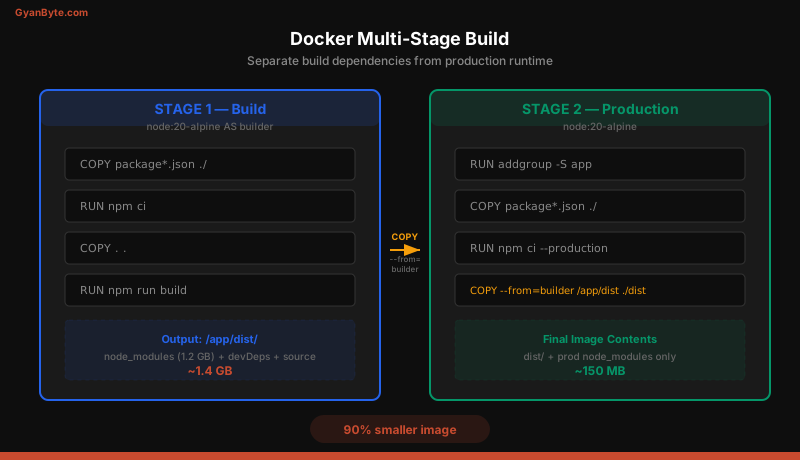
Here is a production-ready multi-stage Dockerfile:
# ---- Stage 1: Build ----
FROM node:20-alpine AS builder
WORKDIR /app
COPY package*.json ./
RUN npm ci
COPY tsconfig.json ./
COPY src ./src
COPY prisma ./prisma
RUN npx prisma generate
RUN npm run build
# ---- Stage 2: Production ----
FROM node:20-alpine
RUN addgroup -S appgroup && adduser -S appuser -G appgroup
WORKDIR /app
COPY package*.json ./
RUN npm ci --omit=dev && npm cache clean --force
COPY /app/dist ./dist
COPY /app/node_modules/.prisma ./node_modules/.prisma
COPY prisma ./prisma
USER appuser
EXPOSE 3000
HEALTHCHECK \
CMD wget --no-verbose --tries=1 --spider http://localhost:3000/health || exit 1
CMD ["node", "dist/server.js"]The first stage installs all dependencies (including dev), compiles TypeScript, and generates Prisma client. The second stage starts fresh, installs only production dependencies, and copies the compiled output from the builder. The result is an image that is typically 80-90% smaller.
The .dockerignore File
Just as .gitignore prevents files from being tracked by Git, .dockerignore prevents files from being sent to the Docker build context. Without it, Docker copies everything — including node_modules, .git, test files, and local environment files — into the build context, slowing down builds and potentially leaking secrets.
node_modules
npm-debug.log
.git
.gitignore
.env
.env.*
dist
coverage
.nyc_output
*.md
docker-compose*.yml
Dockerfile
.dockerignore
tests
__tests__
.vscode
.idea
This file should always exist at the root of your project. It keeps the build context small and prevents sensitive files from ending up in your image.
Running as a Non-Root User
By default, Docker containers run as root. If an attacker exploits a vulnerability in your application, they have root access inside the container. Always create and switch to a non-root user:
RUN addgroup -S appgroup && adduser -S appuser -G appgroup
# Set ownership of the app directory
COPY . .
USER appuserThe USER instruction switches all subsequent commands (and the CMD) to run as the specified user. This is a critical security practice that limits the blast radius of any compromise.
Docker Compose for Development
Docker Compose lets you define and run multi-container applications. For local development, you typically need your Node.js application, a database, and a cache — all connected on the same network.
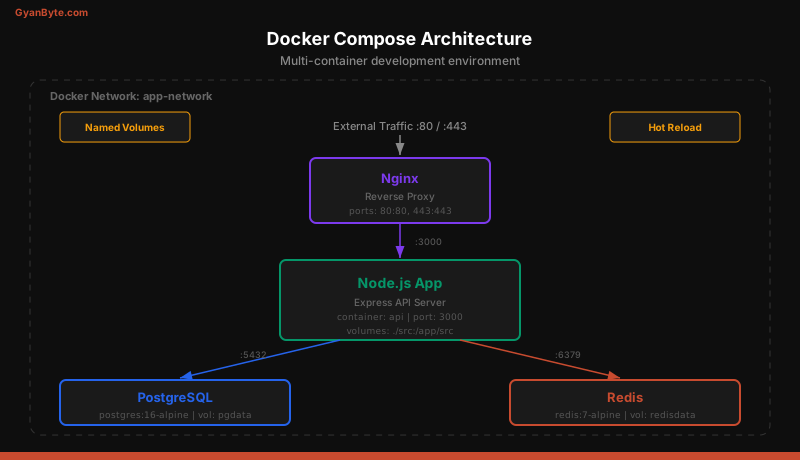
Here is a complete docker-compose.yml for a Node.js development environment:
version: "3.8"

services:
  api:
    build:
      context: .
      dockerfile: Dockerfile
      target: builder  # Use build stage for dev
    ports:
      - "3000:3000"
    volumes:
      - ./src:/app/src  # Hot reload
      - ./prisma:/app/prisma
    environment:
      - NODE_ENV=development
      - DATABASE_URL=postgresql://postgres:postgres@db:5432/myapp
      - REDIS_URL=redis://redis:6379
      - JWT_SECRET=dev-secret-change-in-production
    depends_on:
      db:
        condition: service_healthy
      redis:
        condition: service_healthy
    networks:
      - app-network

  db:
    image: postgres:16-alpine
    ports:
      - "5432:5432"
    environment:
      POSTGRES_USER: postgres
      POSTGRES_PASSWORD: postgres
      POSTGRES_DB: myapp
    volumes:
      - pgdata:/var/lib/postgresql/data
    healthcheck:
      test: ["CMD-SHELL", "pg_isready -U postgres"]
      interval: 5s
      timeout: 3s
      retries: 5
    networks:
      - app-network

  redis:
    image: redis:7-alpine
    ports:
      - "6379:6379"
    command: redis-server --maxmemory 128mb --maxmemory-policy allkeys-lru
    volumes:
      - redisdata:/data
    healthcheck:
      test: ["CMD", "redis-cli", "ping"]
      interval: 5s
      timeout: 3s
      retries: 5
    networks:
      - app-network

  nginx:
    image: nginx:alpine
    ports:
      - "80:80"
    volumes:
      - ./nginx.conf:/etc/nginx/nginx.conf:ro
    depends_on:
      - api
    networks:
      - app-network

volumes:
  pgdata:
  redisdata:

networks:
  app-network:
    driver: bridge
Start everything with docker compose up -d. Stop with docker compose down. Add -v to also remove volumes when you want a clean slate.
Health Checks
Health checks tell Docker (and container orchestrators like ECS or Kubernetes) whether your application is ready to receive traffic. Without health checks, Docker considers a container healthy as soon as the process starts, even if your application is still connecting to the database.
Add a /health endpoint in your Express application:
app.get("/health", async (req, res) => {
  try {
    // Check database connectivity
    await prisma.$queryRaw`SELECT 1`;
    // Check Redis connectivity
    await redis.ping();

    res.status(200).json({
      status: "healthy",
      uptime: process.uptime(),
      timestamp: new Date().toISOString(),
    });
  } catch (error) {
    res.status(503).json({
      status: "unhealthy",
      error: error.message,
    });
  }
});
The Dockerfile HEALTHCHECK instruction periodically hits this endpoint. If it fails consecutively (based on your --retries setting), Docker marks the container as unhealthy.
Environment Variables and Secrets
Never bake secrets into your Docker image. Use environment variables at runtime:
# Do NOT do this
ENV JWT_SECRET=my-secret-key

# Instead, pass at runtime
# docker run -e JWT_SECRET=actual-secret myapp
For Docker Compose, use an .env file (excluded from version control) or reference environment variables from the host. In production, use a secrets manager like AWS Secrets Manager or HashiCorp Vault.
For sensitive values in Compose:
services:
  api:
    environment:
      - DATABASE_URL  # Reads from host environment
    env_file:
      - .env.production  # Or from a file
Image Size Optimization
Image size affects pull times, storage costs, and security surface area. Here is how the common Node.js base images compare:
| Base Image | Size | Use Case |
|---|---|---|
node:20 |
~1 GB | Full Debian, rarely needed |
node:20-slim |
~200 MB | Debian minimal, good default |
node:20-alpine |
~130 MB | Alpine Linux, smallest with Node |
gcr.io/distroless/nodejs20 |
~120 MB | No shell, maximum security |
Alpine is the most popular choice for Node.js because it provides a good balance of small size and usability. Distroless images are even smaller and more secure (no shell, no package manager), but they make debugging harder since you cannot exec into the container.
Additional size reduction techniques:
- Use
npm ci --omit=devto exclude development dependencies - Run
npm cache clean --forceafter installing - Use multi-stage builds to exclude build tools
- Avoid installing unnecessary system packages
Docker Networking
Containers in the same Docker Compose network can reach each other by service name. When your Node.js application connects to postgresql://postgres:postgres@db:5432/myapp, the hostname db resolves to the PostgreSQL container’s IP address automatically.
Docker creates a DNS resolver inside the network. This means:
apican reachdbon port 5432apican reachredison port 6379nginxcan reachapion port 3000- External traffic reaches
nginxon ports 80/443
Containers on different networks cannot communicate. This is useful for isolating services — for example, keeping your database on an internal network that only the API can access.
Common Docker Commands
Here are the commands you will use daily:
# Build the image
docker build -t myapp:latest .

# Run the container
docker run -d -p 3000:3000 --name myapp myapp:latest

# View logs
docker logs -f myapp

# Execute a command inside a running container
docker exec -it myapp sh

# List running containers
docker ps

# Stop and remove
docker stop myapp && docker rm myapp

# Docker Compose
docker compose up -d          # Start all services
docker compose down            # Stop all services
docker compose logs -f api     # Follow logs for one service
docker compose exec api sh     # Shell into a service
docker compose build --no-cache # Rebuild without cache
Production Checklist
Before deploying your containerized Node.js application, verify these items:
- Multi-stage build — production image contains only runtime dependencies
- Non-root user — application runs as an unprivileged user
- .dockerignore — sensitive files and unnecessary directories excluded
- Health check —
/healthendpoint checks database and cache connectivity - No secrets in image — environment variables passed at runtime
- Alpine or slim base — image size under 200 MB
- Layer caching —
package.jsoncopied before source code - Graceful shutdown — application handles
SIGTERMto finish in-flight requests - Logging to stdout — no file-based logging inside containers
- Resource limits — memory and CPU limits set in orchestrator
Graceful Shutdown
Containers receive a SIGTERM signal when they are being stopped. Your application should handle this signal to finish processing current requests before exiting:
const server = app.listen(3000, () => {
  console.log("Server running on port 3000");
});

process.on("SIGTERM", () => {
  console.log("SIGTERM received. Shutting down gracefully...");
  server.close(async () => {
    await prisma.$disconnect();
    await redis.quit();
    process.exit(0);
  });

  // Force shutdown after 30 seconds
  setTimeout(() => {
    console.error("Forced shutdown after timeout");
    process.exit(1);
  }, 30000);
});
Without graceful shutdown, Docker sends SIGKILL after a timeout (default 10 seconds), which drops all active connections immediately.
Summary
Docker transforms how you develop and deploy Node.js applications. Multi-stage builds keep your production images lean. Docker Compose gives you a reproducible development environment with databases and caches. Health checks ensure your containers are actually ready to serve traffic. Running as a non-root user and keeping secrets out of your images are non-negotiable security practices.
In the next lesson, you will take your containerized application and deploy it to AWS using ECS with Fargate, completing the journey from local development to production infrastructure.