
Observability is not about collecting data. It is about answering questions when things break at 3 AM. CloudWatch is AWS’s native observability platform — metrics, logs, alarms, dashboards, and tracing all in one place. Most teams barely scratch the surface, ending up with dashboards nobody looks at and alarms that fire so often everyone ignores them.
This lesson teaches you how to build observability that actually works: structured logs you can query, metrics that reveal problems, alarms that mean something, and tracing that shows you exactly where latency hides.
The Observability Pipeline
Before diving into individual services, understand how the pieces fit together.
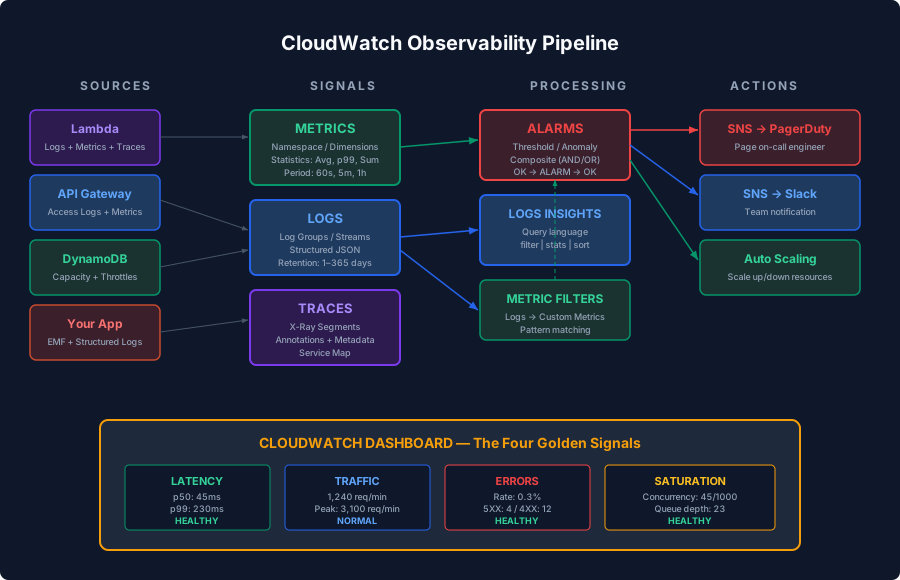
Your application emits three types of signals:
- Metrics — numeric measurements over time (request count, error rate, latency)
- Logs — detailed event records with context
- Traces — request paths across distributed services
CloudWatch collects all three, and you layer alarms, dashboards, and insights on top.
CloudWatch Metrics
Metrics are the heartbeat of your system. They are time-series data points organized into namespaces, with dimensions for filtering.
Built-in Metrics
AWS services publish metrics automatically at no extra cost:
| Service | Key Metrics |
|---|---|
| Lambda | Invocations, Duration, Errors, Throttles, ConcurrentExecutions |
| DynamoDB | ConsumedReadCapacityUnits, ConsumedWriteCapacityUnits, ThrottledRequests |
| API Gateway | Count, 4XXError, 5XXError, Latency, IntegrationLatency |
| SQS | ApproximateNumberOfMessagesVisible, ApproximateAgeOfOldestMessage |
| RDS | CPUUtilization, FreeableMemory, ReadIOPS, WriteIOPS |
Anatomy of a Metric
Every metric has:
- Namespace — logical grouping (e.g.,
AWS/Lambda,MyApp/Orders) - Metric Name — what is measured (e.g.,
Duration) - Dimensions — key-value pairs for filtering (e.g.,
FunctionName=ProcessOrder) - Timestamp — when the data point was recorded
- Value — the measurement
- Unit — the unit of measurement (Seconds, Count, Bytes, etc.)
Custom Metrics
Built-in metrics are a starting point. For real observability, you need custom metrics that reflect your business logic.
// Using the AWS SDK to publish custom metrics
const { CloudWatch } = require('@aws-sdk/client-cloudwatch');
const cw = new CloudWatch({});

async function publishOrderMetrics(order) {
  await cw.putMetricData({
    Namespace: 'MyApp/Orders',
    MetricData: [
      {
        MetricName: 'OrderValue',
        Value: order.totalAmount,
        Unit: 'None',
        Dimensions: [
          { Name: 'OrderType', Value: order.type },
          { Name: 'Region', Value: order.region },
        ],
        Timestamp: new Date(),
      },
      {
        MetricName: 'OrderCount',
        Value: 1,
        Unit: 'Count',
        Dimensions: [
          { Name: 'OrderType', Value: order.type },
        ],
      },
    ],
  });
}
Cost warning: Custom metrics cost $0.30 per metric per month. Each unique combination of namespace + metric name + dimensions creates a new metric. If you add a userId dimension, you create one metric per user — that gets expensive fast.
Embedded Metric Format (EMF)
EMF is the recommended way to publish custom metrics from Lambda. Instead of calling the PutMetricData API (which adds latency and cost), you write a specially formatted log line. CloudWatch automatically extracts it as a metric.
// Using aws-embedded-metrics library
const { createMetricsLogger, Unit } = require('aws-embedded-metrics');

exports.handler = async (event) => {
  const metrics = createMetricsLogger();

  // Set dimensions (be careful — each combo is a unique metric)
  metrics.setDimensions({ Service: 'OrderAPI', Environment: 'prod' });

  // Record metrics
  metrics.putMetric('ProcessingTime', 142, Unit.Milliseconds);
  metrics.putMetric('OrderValue', 89.99, Unit.None);
  metrics.putMetric('ItemCount', 3, Unit.Count);

  // Add searchable properties (not dimensions, no extra cost)
  metrics.setProperty('orderId', 'ord-123');
  metrics.setProperty('customerId', 'cust-456');

  // Metrics are flushed when the logger is flushed
  await metrics.flush();

  return { statusCode: 200 };
};
The log output looks like this:
{
  "_aws": {
    "Timestamp": 1711843200000,
    "CloudWatchMetrics": [{
      "Namespace": "MyApp",
      "Dimensions": [["Service", "Environment"]],
      "Metrics": [
        { "Name": "ProcessingTime", "Unit": "Milliseconds" },
        { "Name": "OrderValue", "Unit": "None" },
        { "Name": "ItemCount", "Unit": "Count" }
      ]
    }]
  },
  "Service": "OrderAPI",
  "Environment": "prod",
  "ProcessingTime": 142,
  "OrderValue": 89.99,
  "ItemCount": 3,
  "orderId": "ord-123",
  "customerId": "cust-456"
}
Key advantage: Properties like orderId are searchable in CloudWatch Logs Insights but do not create metric dimensions, so they do not increase cost.
Statistics and Periods
When you view a metric, you choose a statistic and period:
- Statistics: Average, Sum, Minimum, Maximum, SampleCount, pNN (percentiles)
- Period: The aggregation window (60 seconds, 5 minutes, etc.)
For latency, always use p99 or p95, not average. Average latency hides the worst-case experience:
// Average latency: 50ms (looks fine)
// p99 latency: 2,300ms (1% of users wait 2.3 seconds)
CloudWatch Logs
Logs are where you go when metrics tell you something is wrong but not why.
Structure
- Log Group — container for logs from the same source (e.g.,
/aws/lambda/ProcessOrder) - Log Stream — sequence of events from a single source (e.g., one Lambda container)
- Log Event — a single log entry with a timestamp and message
Lambda automatically creates log groups and streams. Each Lambda container gets its own stream.
Structured Logging
Unstructured logs are almost useless at scale. Always use JSON:
// BAD — unstructured
console.log(`Processing order ${orderId} for customer ${customerId}, total: $${total}`);

// GOOD — structured JSON
console.log(JSON.stringify({
  level: 'INFO',
  message: 'Processing order',
  orderId,
  customerId,
  total,
  itemCount: items.length,
  timestamp: new Date().toISOString(),
}));
A structured logging utility makes this consistent across your codebase:
// lib/logger.js
const LOG_LEVEL = process.env.LOG_LEVEL || 'INFO';
const LEVELS = { DEBUG: 0, INFO: 1, WARN: 2, ERROR: 3 };

class Logger {
  constructor(context = {}) {
    this.context = context;
  }

  child(additionalContext) {
    return new Logger({ ...this.context, ...additionalContext });
  }

  _log(level, message, data = {}) {
    if (LEVELS[level] < LEVELS[LOG_LEVEL]) return;

    const entry = {
      level,
      message,
      timestamp: new Date().toISOString(),
      ...this.context,
      ...data,
    };

    // Errors need special serialization
    if (data.error instanceof Error) {
      entry.error = {
        name: data.error.name,
        message: data.error.message,
        stack: data.error.stack,
      };
    }

    console.log(JSON.stringify(entry));
  }

  debug(msg, data) { this._log('DEBUG', msg, data); }
  info(msg, data) { this._log('INFO', msg, data); }
  warn(msg, data) { this._log('WARN', msg, data); }
  error(msg, data) { this._log('ERROR', msg, data); }
}

module.exports = { Logger };
Usage in a Lambda handler:
const { Logger } = require('./lib/logger');

exports.handler = async (event) => {
  const logger = new Logger({
    service: 'order-api',
    requestId: event.requestContext?.requestId,
    traceId: event.headers?.['X-Amzn-Trace-Id'],
  });

  const { orderId } = JSON.parse(event.body);
  const log = logger.child({ orderId });

  log.info('Order processing started');

  try {
    const result = await processOrder(orderId);
    log.info('Order processed successfully', {
      processingTimeMs: result.duration,
      itemCount: result.items.length,
    });
    return { statusCode: 200, body: JSON.stringify(result) };
  } catch (err) {
    log.error('Order processing failed', { error: err });
    return { statusCode: 500, body: JSON.stringify({ error: 'Internal error' }) };
  }
};
CloudWatch Logs Insights
Logs Insights is a query language for searching structured logs. It is incredibly powerful when your logs are JSON.
-- Find the slowest Lambda invocations in the last hour
fields @timestamp, @duration, @requestId
| filter @type = "REPORT"
| sort @duration desc
| limit 20

-- Search for errors with context
fields @timestamp, level, message, orderId, error.message
| filter level = "ERROR"
| sort @timestamp desc
| limit 50

-- Calculate error rate per 5-minute window
filter level = "ERROR" or level = "INFO"
| stats count(*) as total,
        sum(level = "ERROR") as errors,
        (sum(level = "ERROR") / count(*)) * 100 as errorRate
  by bin(5m)

-- Find slow orders by customer
fields @timestamp, orderId, customerId, processingTimeMs
| filter processingTimeMs > 1000
| stats avg(processingTimeMs) as avgTime,
        max(processingTimeMs) as maxTime,
        count(*) as slowCount
  by customerId
| sort slowCount desc
Metric Filters
Metric filters extract metrics from log data. This turns log patterns into CloudWatch metrics you can alarm on:
Resources:
  ErrorMetricFilter:
    Type: AWS::Logs::MetricFilter
    Properties:
      LogGroupName: /aws/lambda/ProcessOrder
      FilterPattern: '{ $.level = "ERROR" }'
      MetricTransformations:
        - MetricName: OrderErrors
          MetricNamespace: MyApp/Orders
          MetricValue: "1"
          DefaultValue: 0

  TimeoutMetricFilter:
    Type: AWS::Logs::MetricFilter
    Properties:
      LogGroupName: /aws/lambda/ProcessOrder
      FilterPattern: "Task timed out"
      MetricTransformations:
        - MetricName: LambdaTimeouts
          MetricNamespace: MyApp/Orders
          MetricValue: "1"
Subscription Filters
Stream logs to other destinations in real-time:
Resources:
  # Stream error logs to a dedicated processing Lambda
  ErrorLogSubscription:
    Type: AWS::Logs::SubscriptionFilter
    Properties:
      LogGroupName: /aws/lambda/ProcessOrder
      FilterPattern: '{ $.level = "ERROR" }'
      DestinationArn: !GetAtt ErrorProcessorFunction.Arn
Common destinations: Lambda (for alerting), Kinesis Data Firehose (for S3/Elasticsearch), Kinesis Data Streams (for real-time processing).
Log Retention and Cost
CloudWatch Logs never expire by default. This is the #1 cost surprise. Always set retention:
Resources:
  LogGroup:
    Type: AWS::Logs::LogGroup
    Properties:
      LogGroupName: /aws/lambda/ProcessOrder
      RetentionInDays: 30  # Options: 1, 3, 5, 7, 14, 30, 60, 90, ...
Cost-effective logging strategy:
- Set retention to 14-30 days for most services
- Archive important logs to S3 via Kinesis Firehose (90% cheaper for storage)
- Use
LOG_LEVELenvironment variable to control verbosity per environment - Never log full request/response bodies in production (data, cost, and compliance risks)
CloudWatch Alarms
Alarms are how CloudWatch tells you something is wrong. But most teams set them up badly, leading to alert fatigue — the state where alarms fire so often that everyone ignores them.
Alarm Anatomy
An alarm watches a metric and transitions between three states:
- OK — metric is within threshold
- ALARM — metric breached threshold
- INSUFFICIENT_DATA — not enough data points
Threshold Alarms
The basic alarm type. Set a static threshold:
Resources:
  HighErrorRateAlarm:
    Type: AWS::CloudWatch::Alarm
    Properties:
      AlarmName: OrderAPI-HighErrorRate
      AlarmDescription: "Error rate exceeds 5% for 3 consecutive periods"
      Namespace: AWS/Lambda
      MetricName: Errors
      Dimensions:
        - Name: FunctionName
          Value: ProcessOrder
      Statistic: Sum
      Period: 300          # 5 minutes
      EvaluationPeriods: 3 # Must breach 3 times in a row
      Threshold: 5
      ComparisonOperator: GreaterThanThreshold
      TreatMissingData: notBreaching
      AlarmActions:
        - !Ref AlertSNSTopic
      OKActions:
        - !Ref AlertSNSTopic
Anomaly Detection Alarms
Instead of a static threshold, CloudWatch learns the normal pattern and alerts on deviations. Perfect for metrics with predictable daily/weekly patterns:
Resources:
  LatencyAnomalyAlarm:
    Type: AWS::CloudWatch::Alarm
    Properties:
      AlarmName: OrderAPI-LatencyAnomaly
      Metrics:
        - Id: m1
          MetricStat:
            Metric:
              Namespace: AWS/Lambda
              MetricName: Duration
              Dimensions:
                - Name: FunctionName
                  Value: ProcessOrder
            Period: 300
            Stat: p99
        - Id: ad1
          Expression: ANOMALY_DETECTION_BAND(m1, 2)
      ThresholdMetricId: ad1
      ComparisonOperator: GreaterThanUpperThreshold
      EvaluationPeriods: 3
      TreatMissingData: notBreaching
      AlarmActions:
        - !Ref AlertSNSTopic
Composite Alarms
Combine multiple alarms with AND/OR logic to reduce noise:
Resources:
  # Only alert when BOTH error rate AND latency are bad
  # This filters out transient single-metric spikes
  CriticalServiceAlarm:
    Type: AWS::CloudWatch::CompositeAlarm
    Properties:
      AlarmName: OrderAPI-Critical
      AlarmRule: >-
        ALARM("OrderAPI-HighErrorRate")
        AND
        ALARM("OrderAPI-HighLatency")
      AlarmActions:
        - !Ref PagerDutySNSTopic
Alarming Patterns That Actually Work
The pyramid approach: structure alarms by severity.
- Page-worthy (wake someone up): Revenue-impacting failures — composite alarms combining multiple signals. Require 3+ evaluation periods to avoid transient spikes.
- Urgent (Slack channel): Single-metric breaches like elevated error rate or queue depth growing. Require 2+ evaluation periods.
- Informational (dashboard): Early warnings like increased latency, approaching quotas. Use anomaly detection.
Anti-patterns to avoid:
- Alarming on every single Lambda error (use error rate instead)
- Setting thresholds too tight (alarm on 1% error rate instead of 0%)
- Missing
TreatMissingData: notBreaching(causes false alarms during low traffic) - Not setting
OKActions(you never know when the problem resolves)
Alarm Actions
Alarms can trigger:
- SNS — send to Slack, PagerDuty, email
- Auto Scaling — scale EC2, ECS
- Lambda — run custom remediation
- SSM — execute runbooks
Resources:
  AlertTopic:
    Type: AWS::SNS::Topic
    Properties:
      TopicName: prod-alerts

  # Slack integration via Lambda
  SlackNotifier:
    Type: AWS::Serverless::Function
    Properties:
      Handler: index.handler
      Runtime: nodejs20.x
      Events:
        SNS:
          Type: SNS
          Properties:
            Topic: !Ref AlertTopic
AWS X-Ray — Distributed Tracing
When a request flows through API Gateway, Lambda, DynamoDB, and SQS, you need to see the full picture. X-Ray provides distributed tracing.
Enabling X-Ray
# SAM template
Globals:
  Function:
    Tracing: Active  # Enables X-Ray for all Lambda functions

Resources:
  MyApi:
    Type: AWS::Serverless::Api
    Properties:
      StageName: prod
      TracingEnabled: true  # Enables X-Ray for API Gateway
Adding Custom Segments
const AWSXRay = require('aws-xray-sdk-core');
const AWS = AWSXRay.captureAWS(require('aws-sdk'));

exports.handler = async (event) => {
  // Automatically traces all AWS SDK calls

  // Add custom subsegment for business logic
  const subsegment = AWSXRay.getSegment().addNewSubsegment('ProcessOrder');
  subsegment.addAnnotation('orderId', orderId);     // Searchable
  subsegment.addMetadata('orderData', orderData);    // Not searchable, detailed

  try {
    const result = await processOrder(orderData);
    subsegment.close();
    return result;
  } catch (err) {
    subsegment.addError(err);
    subsegment.close();
    throw err;
  }
};
X-Ray generates a service map showing how requests flow through your system and where latency accumulates. Annotations are indexed and searchable — use them for trace filtering by order ID, customer ID, or other business identifiers.
CloudWatch Dashboards
Dashboards tie everything together visually. Build them per-service, not per-AWS-resource:
{
  "widgets": [
    {
      "type": "metric",
      "properties": {
        "title": "Order API - Request Rate",
        "metrics": [
          ["AWS/ApiGateway", "Count", "ApiName", "OrderAPI", { "stat": "Sum", "period": 60 }]
        ],
        "view": "timeSeries"
      }
    },
    {
      "type": "metric",
      "properties": {
        "title": "Order API - Error Rate (%)",
        "metrics": [
          [{ "expression": "(m2/m1)*100", "label": "Error Rate", "id": "e1" }],
          ["AWS/ApiGateway", "Count", "ApiName", "OrderAPI", { "stat": "Sum", "period": 300, "id": "m1", "visible": false }],
          ["AWS/ApiGateway", "5XXError", "ApiName", "OrderAPI", { "stat": "Sum", "period": 300, "id": "m2", "visible": false }]
        ],
        "yAxis": { "left": { "min": 0, "max": 100 } }
      }
    },
    {
      "type": "log",
      "properties": {
        "title": "Recent Errors",
        "query": "fields @timestamp, message, orderId, error.message\n| filter level = 'ERROR'\n| sort @timestamp desc\n| limit 20",
        "region": "us-east-1",
        "stacked": false,
        "view": "table"
      }
    }
  ]
}
The Four Golden Signals Dashboard
For every service, track these four signals (from the Google SRE book):
- Latency — p50, p95, p99 response times
- Traffic — requests per second
- Errors — error count and error rate
- Saturation — concurrent executions, queue depth, CPU utilization
Cost-Effective Observability
CloudWatch costs can spiral. Here is how to keep them under control:
| Component | Cost Driver | Optimization |
|---|---|---|
| Custom Metrics | $0.30/metric/month | Minimize dimensions, use EMF properties |
| Log Ingestion | $0.50/GB | Set LOG_LEVEL, drop debug in prod |
| Log Storage | $0.03/GB/month | Set retention, archive to S3 |
| Dashboards | $3/dashboard/month | Consolidate, use fewer dashboards |
| Alarms | $0.10/alarm/month | Use composite alarms |
| Logs Insights | $0.005/GB scanned | Narrow time range, use filter first |
Biggest cost saving: Set log retention to 14 days for Lambda functions. Most debugging happens within hours, not months.
Putting It All Together
Here is a complete observability setup for an order processing service:
Resources:
  # Log group with retention
  OrderLogGroup:
    Type: AWS::Logs::LogGroup
    Properties:
      LogGroupName: /aws/lambda/ProcessOrder
      RetentionInDays: 14

  # Error metric from logs
  ErrorFilter:
    Type: AWS::Logs::MetricFilter
    Properties:
      LogGroupName: !Ref OrderLogGroup
      FilterPattern: '{ $.level = "ERROR" }'
      MetricTransformations:
        - MetricName: OrderErrors
          MetricNamespace: MyApp/Orders
          MetricValue: "1"

  # Error rate alarm
  ErrorAlarm:
    Type: AWS::CloudWatch::Alarm
    Properties:
      AlarmName: Orders-ErrorRate
      Namespace: MyApp/Orders
      MetricName: OrderErrors
      Statistic: Sum
      Period: 300
      EvaluationPeriods: 2
      Threshold: 10
      ComparisonOperator: GreaterThanThreshold
      TreatMissingData: notBreaching
      AlarmActions: [!Ref AlertTopic]
      OKActions: [!Ref AlertTopic]

  # Latency alarm using anomaly detection
  LatencyAlarm:
    Type: AWS::CloudWatch::Alarm
    Properties:
      AlarmName: Orders-LatencyAnomaly
      Metrics:
        - Id: m1
          MetricStat:
            Metric:
              Namespace: AWS/Lambda
              MetricName: Duration
              Dimensions:
                - Name: FunctionName
                  Value: ProcessOrder
            Period: 300
            Stat: p99
        - Id: ad1
          Expression: ANOMALY_DETECTION_BAND(m1, 2)
      ThresholdMetricId: ad1
      ComparisonOperator: GreaterThanUpperThreshold
      EvaluationPeriods: 3
      TreatMissingData: notBreaching
      AlarmActions: [!Ref AlertTopic]

  # Alert routing
  AlertTopic:
    Type: AWS::SNS::Topic
    Properties:
      TopicName: order-alerts
Summary
Real observability is not about collecting everything — it is about collecting the right things and making them actionable. Use structured JSON logs with a consistent logger. Publish custom metrics via EMF to avoid API call overhead. Build alarms using the pyramid approach: few page-worthy composites at the top, more informational warnings at the bottom. Set log retention from day one. And track the four golden signals for every service.
Next up, we will cover VPC networking — the foundation that connects (and isolates) everything in your AWS infrastructure.