
API Gateway is the front door to your backend on AWS. It handles routing, authentication, throttling, and transformation — all before your code even runs. But choosing the wrong API type or ignoring its limits can cost you hours of debugging.
This lesson covers the three API Gateway flavors, authorization strategies, caching, common pitfalls, and production-ready patterns you need as a backend engineer.
Three Flavors of API Gateway
AWS offers three distinct API Gateway types. Each serves a different use case.
REST API (v1)
The original, fully-featured API Gateway. It supports request/response transformations, API keys, usage plans, caching, WAF integration, and resource policies. It is the most expensive option but offers the deepest feature set.
HTTP API (v2)
A lightweight, faster, and cheaper alternative. HTTP APIs are up to 71% cheaper and have lower latency. They support JWT authorizers natively, OIDC integration, and automatic IAM authorization. However, they lack request validation, caching, usage plans, and WAF integration.
WebSocket API
For real-time, bidirectional communication. WebSocket APIs maintain persistent connections and route messages based on a route key in the message body. Think chat apps, live dashboards, and gaming backends.
Comparison Table
| Feature | REST API | HTTP API | WebSocket API |
|---|---|---|---|
| Price (per million) | $3.50 | $1.00 | $1.00 + connection minutes |
| Latency | ~30ms overhead | ~10ms overhead | Persistent connection |
| Caching | Yes (built-in) | No | No |
| Request Validation | Yes | No | No |
| Usage Plans / API Keys | Yes | No | No |
| WAF Integration | Yes | No | No |
| JWT Authorizer | Via Lambda | Native | No |
| Lambda Proxy | Yes | Yes | Yes |
| VPC Link | Yes | Yes | No |
| Custom Domains | Yes | Yes | Yes |
Rule of thumb: Start with HTTP API. Move to REST API only when you need caching, request validation, usage plans, or WAF. Use WebSocket API for real-time features.
The Request Flow
When a request hits API Gateway, it passes through a well-defined pipeline before reaching your backend.
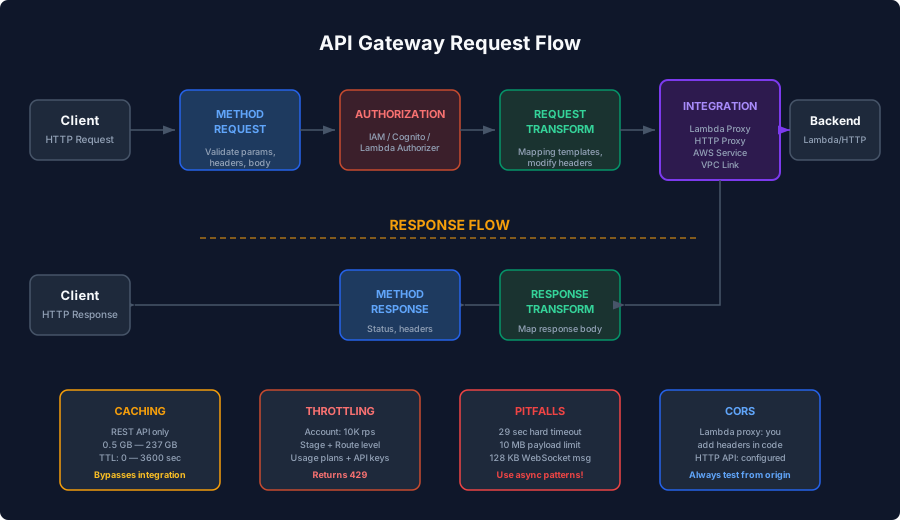
The pipeline stages are:
- Method Request — validates the incoming request (headers, query parameters, body schema)
- Authorization — checks identity via IAM, Cognito, or a Lambda authorizer
- Request Transformation — maps/modifies the request before forwarding
- Integration — calls your backend (Lambda, HTTP endpoint, or AWS service)
- Response Transformation — maps/modifies the response before returning
- Method Response — defines the response shape returned to the client
Authorization Patterns
API Gateway supports three authorization mechanisms. Each fits different architectures.
IAM Authorization
Best for service-to-service calls within AWS. The caller signs the request with SigV4, and API Gateway validates it against IAM policies. No custom code needed.
# SAM template — IAM-authorized endpoint
Resources:
  MyApi:
    Type: AWS::Serverless::Api
    Properties:
      StageName: prod
      Auth:
        DefaultAuthorizer: AWS_IAM
Cognito User Pool Authorizer
Best for consumer-facing APIs with user sign-up/sign-in. The client sends a JWT from Cognito, and API Gateway validates it without calling Lambda.
Resources:
  MyApi:
    Type: AWS::Serverless::Api
    Properties:
      StageName: prod
      Auth:
        Authorizers:
          CognitoAuth:
            UserPoolArn: !GetAtt UserPool.Arn
Lambda Authorizer (Custom Authorizer)
The most flexible option. You write a Lambda function that receives the token or request parameters and returns an IAM policy. Use this for custom JWT validation, API keys from a database, or multi-tenant authorization.
There are two types:
- Token-based — receives the
Authorizationheader value - Request-based — receives the full request context (headers, query strings, stage variables)
Here is a production-ready Lambda authorizer:
// lambda-authorizer/index.js
const jwt = require('jsonwebtoken');

const SECRET = process.env.JWT_SECRET;
const POLICY_CACHE = {};

exports.handler = async (event) => {
  const token = extractToken(event.authorizationToken);

  if (!token) {
    throw new Error('Unauthorized'); // Returns 401
  }

  try {
    const decoded = jwt.verify(token, SECRET, {
      algorithms: ['HS256'],
      issuer: 'my-app',
    });

    // Cache key for API Gateway's built-in authorizer caching
    const principalId = decoded.sub;
    const policy = generatePolicy(principalId, 'Allow', event.methodArn, {
      userId: decoded.sub,
      role: decoded.role,
      tenantId: decoded.tenantId,
    });

    return policy;
  } catch (err) {
    console.error('Token verification failed:', err.message);
    throw new Error('Unauthorized');
  }
};

function extractToken(authHeader) {
  if (!authHeader) return null;
  const parts = authHeader.split(' ');
  if (parts[0] !== 'Bearer' || parts.length !== 2) return null;
  return parts[1];
}

function generatePolicy(principalId, effect, resource, context) {
  // Wildcard the resource to allow caching across endpoints
  const arnParts = resource.split(':');
  const apiGatewayArn = arnParts[5].split('/');
  const wildcardResource = arnParts.slice(0, 5).join(':') + ':' +
    apiGatewayArn[0] + '/' + apiGatewayArn[1] + '/*';

  return {
    principalId,
    policyDocument: {
      Version: '2012-10-17',
      Statement: [{
        Action: 'execute-api:Invoke',
        Effect: effect,
        Resource: wildcardResource,
      }],
    },
    // Context is passed to the integration as requestContext.authorizer
    context: {
      userId: String(context.userId),
      role: String(context.role),
      tenantId: String(context.tenantId),
    },
  };
}
Key points about the authorizer:
- Always wildcard the resource ARN in the policy. API Gateway caches the policy, and a narrow resource ARN means the cached policy fails for other endpoints.
- Context values must be strings, numbers, or booleans — no arrays or objects.
- Enable caching (300 seconds default) to avoid calling the authorizer on every request.
Accessing Authorizer Context in Lambda
The authorizer context is available in your backend Lambda via the event:
exports.handler = async (event) => {
  const userId = event.requestContext.authorizer.userId;
  const tenantId = event.requestContext.authorizer.tenantId;
  const role = event.requestContext.authorizer.role;

  // Use tenantId for data isolation
  const items = await dynamo.query({
    TableName: 'Orders',
    KeyConditionExpression: 'tenantId = :tid',
    ExpressionAttributeValues: { ':tid': tenantId },
  }).promise();

  return {
    statusCode: 200,
    body: JSON.stringify(items.Items),
  };
};
Throttling and Rate Limiting
API Gateway provides two layers of throttling:
Account-Level Limits
By default, your AWS account gets 10,000 requests per second with a burst of 5,000. These are hard limits that apply across all APIs in a region.
Stage-Level and Route-Level Throttling
You can set throttling per stage and per route:
Resources:
  MyApi:
    Type: AWS::Serverless::Api
    Properties:
      StageName: prod
      MethodSettings:
        - HttpMethod: '*'
          ResourcePath: '/*'
          ThrottlingRateLimit: 1000    # Steady-state requests/sec
          ThrottlingBurstLimit: 500     # Burst capacity
Usage Plans and API Keys
For partner APIs or tiered access, use usage plans:
Resources:
  BasicPlan:
    Type: AWS::ApiGateway::UsagePlan
    Properties:
      UsagePlanName: basic-tier
      Throttle:
        RateLimit: 100
        BurstLimit: 50
      Quota:
        Limit: 10000
        Period: MONTH
      ApiStages:
        - ApiId: !Ref MyApi
          Stage: prod
API keys are not a security mechanism. They are identifiers for usage tracking. Always combine them with a proper authorizer.
Caching (REST API Only)
REST API supports response caching at the stage level. This can dramatically reduce Lambda invocations and backend load.
MethodSettings:
  - HttpMethod: GET
    ResourcePath: /products
    CachingEnabled: true
    CacheTtlInSeconds: 300
    CacheDataEncrypted: true
Cache sizes range from 0.5 GB to 237 GB. Pricing starts at ~$0.02/hour for 0.5 GB. Cache keys default to the full request URL, but you can include headers and query strings:
# Cache based on Authorization header (per-user caching)
CacheKeyParameters:
  - method.request.header.Authorization
  - method.request.querystring.page
Cache invalidation: Clients can send Cache-Control: max-age=0 to invalidate. Protect this with the Require authorization for cache control setting, otherwise anyone can bust your cache.
Request Validation
REST API can validate requests before they reach your Lambda, rejecting bad payloads at the gateway level:
{
  "$schema": "http://json-schema.org/draft-04/schema#",
  "type": "object",
  "required": ["email", "name"],
  "properties": {
    "email": {
      "type": "string",
      "pattern": "^[a-zA-Z0-9._%+-]+@[a-zA-Z0-9.-]+\\.[a-zA-Z]{2,}$"
    },
    "name": {
      "type": "string",
      "minLength": 1,
      "maxLength": 100
    },
    "age": {
      "type": "integer",
      "minimum": 0,
      "maximum": 150
    }
  }
}
This saves Lambda invocations and keeps your code cleaner. The gateway returns a 400 Bad Request with a descriptive message.
CORS Configuration
CORS is the #1 source of confusion for frontend-to-API-Gateway integrations.
For Lambda proxy integration, API Gateway does not add CORS headers — your Lambda must return them:
return {
  statusCode: 200,
  headers: {
    'Access-Control-Allow-Origin': 'https://myapp.com',
    'Access-Control-Allow-Headers': 'Content-Type,Authorization',
    'Access-Control-Allow-Methods': 'GET,POST,OPTIONS',
    'Access-Control-Max-Age': '86400',
  },
  body: JSON.stringify(data),
};
For HTTP API, CORS is configured at the API level:
Resources:
  HttpApi:
    Type: AWS::Serverless::HttpApi
    Properties:
      CorsConfiguration:
        AllowOrigins:
          - 'https://myapp.com'
        AllowMethods:
          - GET
          - POST
          - PUT
          - DELETE
        AllowHeaders:
          - Content-Type
          - Authorization
        MaxAge: 86400
Integration Types
Lambda Proxy Integration
The most common pattern. API Gateway passes the entire request as-is to Lambda and expects a specific response format. No mapping templates needed.
HTTP Proxy Integration
Forwards the request to another HTTP endpoint. Useful for migrating APIs or fronting legacy services.
AWS Service Integration
Call AWS services directly without Lambda. For example, write to SQS or DynamoDB from API Gateway:
# Direct DynamoDB integration — no Lambda needed
Integration:
  Type: AWS
  IntegrationHttpMethod: POST
  Uri: !Sub 'arn:aws:apigateway:${AWS::Region}:dynamodb:action/PutItem'
  RequestTemplates:
    application/json: |
      {
        "TableName": "Events",
        "Item": {
          "id": {"S": "$context.requestId"},
          "data": {"S": "$input.body"},
          "timestamp": {"S": "$context.requestTimeEpoch"}
        }
      }
VPC Link
Connect API Gateway to resources inside your VPC (ECS, EKS, EC2) via a Network Load Balancer. This keeps traffic private.
Custom Domain Names
Map your API to a custom domain like api.myapp.com:
Resources:
  CustomDomain:
    Type: AWS::ApiGateway::DomainName
    Properties:
      DomainName: api.myapp.com
      CertificateArn: !Ref ACMCertificate
      SecurityPolicy: TLS_1_2

  BasePathMapping:
    Type: AWS::ApiGateway::BasePathMapping
    Properties:
      DomainName: !Ref CustomDomain
      RestApiId: !Ref MyApi
      Stage: prod
      BasePath: v1
This gives you api.myapp.com/v1/products instead of the auto-generated xyz123.execute-api.us-east-1.amazonaws.com/prod/products.
Common Pitfalls
These are the issues that catch every backend engineer at least once.
The 29-Second Timeout
API Gateway has a hard limit of 29 seconds for synchronous integrations. You cannot increase it. If your Lambda or backend takes longer, the client gets a 504.
Solutions:
- Use asynchronous patterns: API Gateway → SQS → Lambda
- Return a 202 Accepted with a job ID, poll for results
- Use Step Functions for orchestration
// Async pattern: accept job, process in background
exports.handler = async (event) => {
  const jobId = uuid();
  await sqs.sendMessage({
    QueueUrl: process.env.QUEUE_URL,
    MessageBody: JSON.stringify({
      jobId,
      ...JSON.parse(event.body),
    }),
  }).promise();

  return {
    statusCode: 202,
    body: JSON.stringify({
      jobId,
      status: 'processing',
      statusUrl: `/jobs/${jobId}`,
    }),
  };
};
Payload Size Limits
- Request payload: 10 MB max
- Response payload: 10 MB max
- WebSocket message: 128 KB max (32 KB for frames)
For larger payloads, use pre-signed S3 URLs.
Binary Media Types
By default, API Gateway treats everything as text. For binary responses (images, PDFs, zip files), configure binary media types:
BinaryMediaTypes:
  - 'image/*'
  - 'application/pdf'
  - 'application/zip'
And return base64-encoded content from your Lambda:
return {
  statusCode: 200,
  headers: { 'Content-Type': 'image/png' },
  isBase64Encoded: true,
  body: imageBuffer.toString('base64'),
};
Stage Variables Gotcha
Stage variables are not environment variables. They are template parameters resolved at request time. Use them for per-stage configuration:
# In the integration URI
arn:aws:lambda:us-east-1:123456789:function:${stageVariables.functionName}
But remember: you need to grant Lambda invoke permission for each stage variable value.
Monitoring with CloudWatch
API Gateway publishes several key metrics automatically:
- Count — total API requests
- 4XXError / 5XXError — client and server error rates
- Latency — total time from request to response
- IntegrationLatency — time spent in the backend
Enable detailed metrics per method for per-route visibility:
MethodSettings:
  - HttpMethod: '*'
    ResourcePath: '/*'
    MetricsEnabled: true
    DataTraceEnabled: true   # Logs full request/response (careful in prod)
    LoggingLevel: INFO
Set up alarms on 5XXError and Latency p99 to catch issues early. We will cover CloudWatch in depth in the next lesson.
Stages and Deployments
A deployment is a snapshot of your API configuration. A stage points to a deployment. This lets you manage dev, staging, and prod environments:
# Create a deployment
aws apigateway create-deployment \
  --rest-api-id abc123 \
  --stage-name prod \
  --description "Release v2.3.0"

# Canary deployments — route 10% of traffic to new deployment
aws apigateway create-deployment \
  --rest-api-id abc123 \
  --stage-name prod \
  --canary-settings '{"percentTraffic": 10}'
Canary deployments let you test changes with a percentage of production traffic before full rollout.
Production Checklist
Before going live with an API Gateway setup:
- Authorization — every route has an authorizer (no open endpoints unless intentional)
- Throttling — stage-level and route-level limits configured
- CORS — tested from actual frontend domain, not just
* - Custom domain — with TLS 1.2 minimum
- Logging — access logs and execution logs enabled
- Alarms — 5XX rate, latency p99, throttle count
- Request validation — enabled for all POST/PUT endpoints
- Timeout handling — async pattern for anything that might exceed 29 seconds
- Payload limits — pre-signed URLs for large uploads/downloads
- WAF — attached to REST API for IP blocking, rate limiting, SQL injection protection
Summary
API Gateway is more than a URL router. It is your API’s security perimeter, traffic controller, and first line of defense. Choose HTTP API for simplicity and cost, REST API for full control, and WebSocket API for real-time features. Always plan for the 29-second timeout, validate requests at the gateway, and use Lambda authorizers when you need custom logic.
Next up, we will build real observability with CloudWatch — metrics, logs, alarms, and tracing that actually help you debug production issues.