
IAM is the gatekeeper of your entire AWS account. Every API call — whether from the console, CLI, SDK, or another AWS service — is authenticated and authorized through IAM. Get it right and your infrastructure is locked down. Get it wrong and you’re one leaked credential away from a nightmare.
IAM Entities — Users, Groups, and Roles
IAM has three types of identities, each designed for a different use case.
IAM Users
An IAM user is a persistent identity tied to a person or application. Users can have:
- Console password — for logging into the AWS Management Console
- Access keys — for programmatic access (CLI, SDK)
# Create a new IAM user
aws iam create-user --user-name deploy-bot

# Create access keys for programmatic access
aws iam create-access-key --user-name deploy-bot
# Returns AccessKeyId and SecretAccessKey — store these securely!
When to use: Almost never for applications. Use roles instead. IAM users are primarily for human operators who need console access, and even then, consider AWS IAM Identity Center (SSO) for organizations.
IAM Groups
A group is a collection of users that share the same permissions. Attach policies to the group, and every user in the group inherits them.
# Create a group and attach a policy
aws iam create-group --group-name backend-developers
aws iam attach-group-policy \
  --group-name backend-developers \
  --policy-arn arn:aws:iam::aws:policy/ReadOnlyAccess

# Add a user to the group
aws iam add-user-to-group \
  --group-name backend-developers \
  --user-name alice
Best practice: Never attach policies directly to users. Always use groups, even if a group has only one member. This makes auditing and rotation trivial.
IAM Roles
A role is a temporary identity that can be assumed by users, services, or external accounts. Roles don’t have permanent credentials — instead, they issue short-lived tokens via STS (Security Token Service).
# Create a role that Lambda can assume
aws iam create-role \
  --role-name lambda-s3-reader \
  --assume-role-policy-document file://trust-policy.json
Where trust-policy.json is:
{
  "Version": "2012-10-17",
  "Statement": [
    {
      "Effect": "Allow",
      "Principal": {
        "Service": "lambda.amazonaws.com"
      },
      "Action": "sts:AssumeRole"
    }
  ]
}
When to use: Always, for applications. EC2 instances get instance profiles (a wrapper around roles). Lambda functions get execution roles. ECS tasks get task roles. Roles are the default for machine-to-machine authentication.
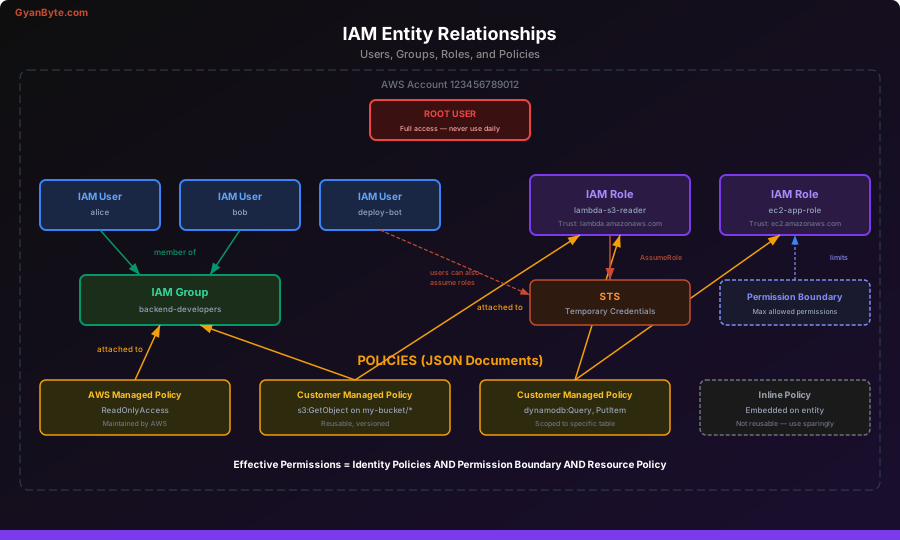
Here is a diagram showing how IAM entities relate to each other:
Policy Document Structure
Policies are JSON documents that define permissions. Every policy follows the same structure:
{
  "Version": "2012-10-17",
  "Statement": [
    {
      "Sid": "AllowS3ReadWrite",
      "Effect": "Allow",
      "Action": [
        "s3:GetObject",
        "s3:PutObject",
        "s3:DeleteObject"
      ],
      "Resource": [
        "arn:aws:s3:::my-app-uploads/*"
      ],
      "Condition": {
        "StringEquals": {
          "s3:prefix": "user-data/"
        }
      }
    }
  ]
}
Let’s break down each field:
Version
Always "2012-10-17". This is the policy language version, not a date you choose. Using the older "2008-10-17" version disables features like policy variables.
Statement
An array of permission rules. Each statement has:
- Sid (optional) — a human-readable identifier
- Effect —
AlloworDeny. Deny always wins. - Action — the API operations (
s3:GetObject,ec2:RunInstances,*) - Resource — the ARN(s) this applies to
- Condition (optional) — additional constraints
The ARN Format
arn:aws:service:region:account-id:resource-type/resource-idExamples:
arn:aws:s3:::my-bucket              # S3 bucket (global, no region/account)
arn:aws:s3:::my-bucket/*            # All objects in the bucket
arn:aws:lambda:us-east-1:123456789012:function:my-func
arn:aws:iam::123456789012:role/my-role  # IAM is global (no region)
Managed vs. Inline Policies
AWS Managed Policies
Pre-built by AWS. Examples: ReadOnlyAccess, AmazonS3FullAccess, AWSLambdaBasicExecutionRole.
# Attach a managed policy to a role
aws iam attach-role-policy \
  --role-name my-role \
  --policy-arn arn:aws:iam::aws:policy/AmazonS3ReadOnlyAccess
Pros: Maintained by AWS, automatically updated when new API actions are added.
Cons: Usually too broad for production. AmazonS3FullAccess grants access to ALL buckets.
Customer Managed Policies
Policies you create and maintain. These are standalone JSON documents that can be attached to multiple users, groups, or roles.
# Create a customer managed policy
aws iam create-policy \
  --policy-name app-s3-access \
  --policy-document file://policy.json
Best practice: Write custom policies for production workloads. Start with the minimum permissions and add as needed.
Inline Policies
Policies embedded directly on a user, group, or role. They can’t be shared.
# Attach an inline policy to a role
aws iam put-role-policy \
  --role-name my-role \
  --policy-name s3-access \
  --policy-document file://policy.json
Use sparingly. Inline policies are harder to audit and don’t show up in the central policy list. Use them only for one-off exceptions.
The Principle of Least Privilege
Least privilege means granting only the permissions required to perform a specific task, and nothing more. This is not a suggestion — it’s the most important security practice in AWS.
Bad: Overly Permissive
{
  "Version": "2012-10-17",
  "Statement": [
    {
      "Effect": "Allow",
      "Action": "*",
      "Resource": "*"
    }
  ]
}
This is AdministratorAccess. If this credential leaks, the attacker owns your entire account — every service, every region, every resource.
Better: Service-Scoped
{
  "Version": "2012-10-17",
  "Statement": [
    {
      "Effect": "Allow",
      "Action": "s3:*",
      "Resource": "*"
    }
  ]
}
Still too broad — grants access to every S3 bucket including ones with secrets or backups.
Best: Action + Resource Scoped
{
  "Version": "2012-10-17",
  "Statement": [
    {
      "Effect": "Allow",
      "Action": [
        "s3:GetObject",
        "s3:PutObject"
      ],
      "Resource": "arn:aws:s3:::my-app-uploads/user-avatars/*"
    }
  ]
}
This policy allows reading and writing only to a specific prefix in a specific bucket. If the credential leaks, the blast radius is limited to user avatar files.
How to Find the Right Permissions
- Start with zero permissions and add as you hit
AccessDeniederrors - Use CloudTrail to see what API calls your application actually makes
- Use IAM Access Analyzer to generate policies from access activity
- Check the service documentation for the minimum required actions
# Generate a policy from CloudTrail activity (last 90 days)
aws accessanalyzer generate-access-preview \
  --analyzer-arn arn:aws:access-analyzer:us-east-1:123456789012:analyzer/my-analyzer \
  --access arn:aws:iam::123456789012:role/my-role
Assuming Roles and STS
When a service or user assumes a role, STS issues temporary credentials with a configurable expiry (15 minutes to 12 hours).
# Assume a role from the CLI
aws sts assume-role \
  --role-arn arn:aws:iam::123456789012:role/deploy-role \
  --role-session-name my-deploy-session \
  --duration-seconds 3600

# Returns:
# {
#   "Credentials": {
#     "AccessKeyId": "ASIA...",
#     "SecretAccessKey": "...",
#     "SessionToken": "...",
#     "Expiration": "2026-03-31T12:00:00Z"
#   }
# }
In application code (Node.js):
const { STSClient, AssumeRoleCommand } = require('@aws-sdk/client-sts');

const sts = new STSClient({ region: 'us-east-1' });

const { Credentials } = await sts.send(new AssumeRoleCommand({
  RoleArn: 'arn:aws:iam::123456789012:role/deploy-role',
  RoleSessionName: 'app-deploy',
  DurationSeconds: 3600,
}));

// Use the temporary credentials
const s3 = new S3Client({
  region: 'us-east-1',
  credentials: {
    accessKeyId: Credentials.AccessKeyId,
    secretAccessKey: Credentials.SecretAccessKey,
    sessionToken: Credentials.SessionToken,
  },
});
Why temporary credentials matter:
- Automatically expire — no rotation burden
- Can be scoped with session policies for even tighter restrictions
- CloudTrail logs the session name for audit
Cross-Account Access
A common pattern is giving a service in Account A access to resources in Account B. This uses a trust policy on the target role:
{
  "Version": "2012-10-17",
  "Statement": [
    {
      "Effect": "Allow",
      "Principal": {
        "AWS": "arn:aws:iam::111111111111:role/app-role"
      },
      "Action": "sts:AssumeRole",
      "Condition": {
        "StringEquals": {
          "sts:ExternalId": "unique-secret-id"
        }
      }
    }
  ]
}
The ExternalId prevents the “confused deputy” problem where a malicious third party tricks your service into accessing another customer’s account.
Cross-Account Flow
- Account B creates a role with the trust policy above
- Account B attaches permission policies (e.g., S3 read access)
- Account A’s application calls
sts:AssumeRolewith the role ARN and ExternalId - STS returns temporary credentials scoped to Account B’s role
- Account A uses those credentials to access Account B’s resources
Service-Linked Roles
Some AWS services need permissions to call other services on your behalf. Service-linked roles are pre-defined roles that AWS creates and manages.
# List service-linked roles in your account
aws iam list-roles \
  --query "Roles[?starts_with(RoleName, 'AWSServiceRoleFor')].[RoleName,Description]" \
  --output table
Examples:
AWSServiceRoleForElasticLoadBalancing— ALB/NLB managing ENIs and security groupsAWSServiceRoleForRDS— RDS managing networking and snapshotsAWSServiceRoleForECS— ECS managing load balancer registrations
You can’t modify the permission policy on service-linked roles, but you can delete them if you’re no longer using the service.
Permission Boundaries
A permission boundary is a guardrail that limits the maximum permissions a role or user can have, regardless of what policies are attached.
{
  "Version": "2012-10-17",
  "Statement": [
    {
      "Effect": "Allow",
      "Action": [
        "s3:*",
        "dynamodb:*",
        "lambda:*",
        "logs:*",
        "sqs:*"
      ],
      "Resource": "*"
    }
  ]
}
If this is set as a permission boundary, even if someone attaches AdministratorAccess to the role, the effective permissions are limited to S3, DynamoDB, Lambda, CloudWatch Logs, and SQS.
# Set a permission boundary on a role
aws iam put-role-permissions-boundary \
  --role-name dev-role \
  --permissions-boundary arn:aws:iam::123456789012:policy/dev-boundary
Use case: Allow developers to create their own IAM roles (for Lambda functions, etc.) without the risk of privilege escalation. The boundary ensures they can’t create roles more powerful than their boundary allows.
Policy Conditions
Conditions let you add context-aware restrictions to your policies:
{
  "Version": "2012-10-17",
  "Statement": [
    {
      "Effect": "Allow",
      "Action": "s3:*",
      "Resource": "arn:aws:s3:::production-data/*",
      "Condition": {
        "IpAddress": {
          "aws:SourceIp": "10.0.0.0/8"
        },
        "Bool": {
          "aws:MultiFactorAuthPresent": "true"
        },
        "StringEquals": {
          "aws:RequestedRegion": "us-east-1"
        }
      }
    }
  ]
}
This policy allows S3 access only when:
- The request comes from the
10.0.0.0/8CIDR range (VPC) - The user authenticated with MFA
- The request targets
us-east-1
Common condition keys:
aws:SourceIp— restrict by IP rangeaws:MultiFactorAuthPresent— require MFAaws:RequestedRegion— restrict to specific regionsaws:PrincipalTag/— restrict by user/role tagsaws:ResourceTag/— restrict by resource tags
IAM Best Practices Checklist
- Enable MFA on the root account and all human users
- Use roles for applications, never long-lived access keys
- Apply least privilege — start with zero and add
- Use groups to manage human user permissions
- Set permission boundaries for developer self-service
- Rotate credentials regularly (or better, use roles so you don’t have to)
- Enable CloudTrail and monitor for anomalous API calls
- Use IAM Access Analyzer to find unintended external access
- Tag everything — use tags in policy conditions for attribute-based access control
- Audit regularly — use
aws iam generate-credential-reportto find stale credentials
# Generate a credential report
aws iam generate-credential-report
aws iam get-credential-report --output text --query Content | base64 -d > report.csv

# Find users with access keys older than 90 days
# (inspect the CSV for password_last_changed and access_key_last_rotated)
What’s Next
With IAM locked down, you’re ready to build. In the next lesson, we’ll explore AWS Lambda — when serverless functions are the right choice, when they’re not, and how to handle cold starts, concurrency, and deployment.